
Accept Contactless Payments with Tap to Phone
Overview
Tap to Phone lets eligible Maya Business merchants accept contactless payments using an NFC-enabled Android smartphone and the Maya Business App.
This guide covers how to:
- Activate Tap to Phone
- Accept contactless payments using your Android smartphone
- Send and share digital receipts
Watch the Walkthrough
Get a quick overview of how Tap to Phone works, from accepting a payment to sending a digital receipt.
Prefer step-by-step instructions? Continue below to follow the guide.
Before You Start
Make sure you have:
- An NFC-enabled Android smartphone
- The Maya Business App
- A Maya Business Pro account
Note: Tap to Phone is available Pro merchants only. No coding is required.
Activate Tap to Phone
Before accepting payments, activate Tap to Phone from the Maya Business App.
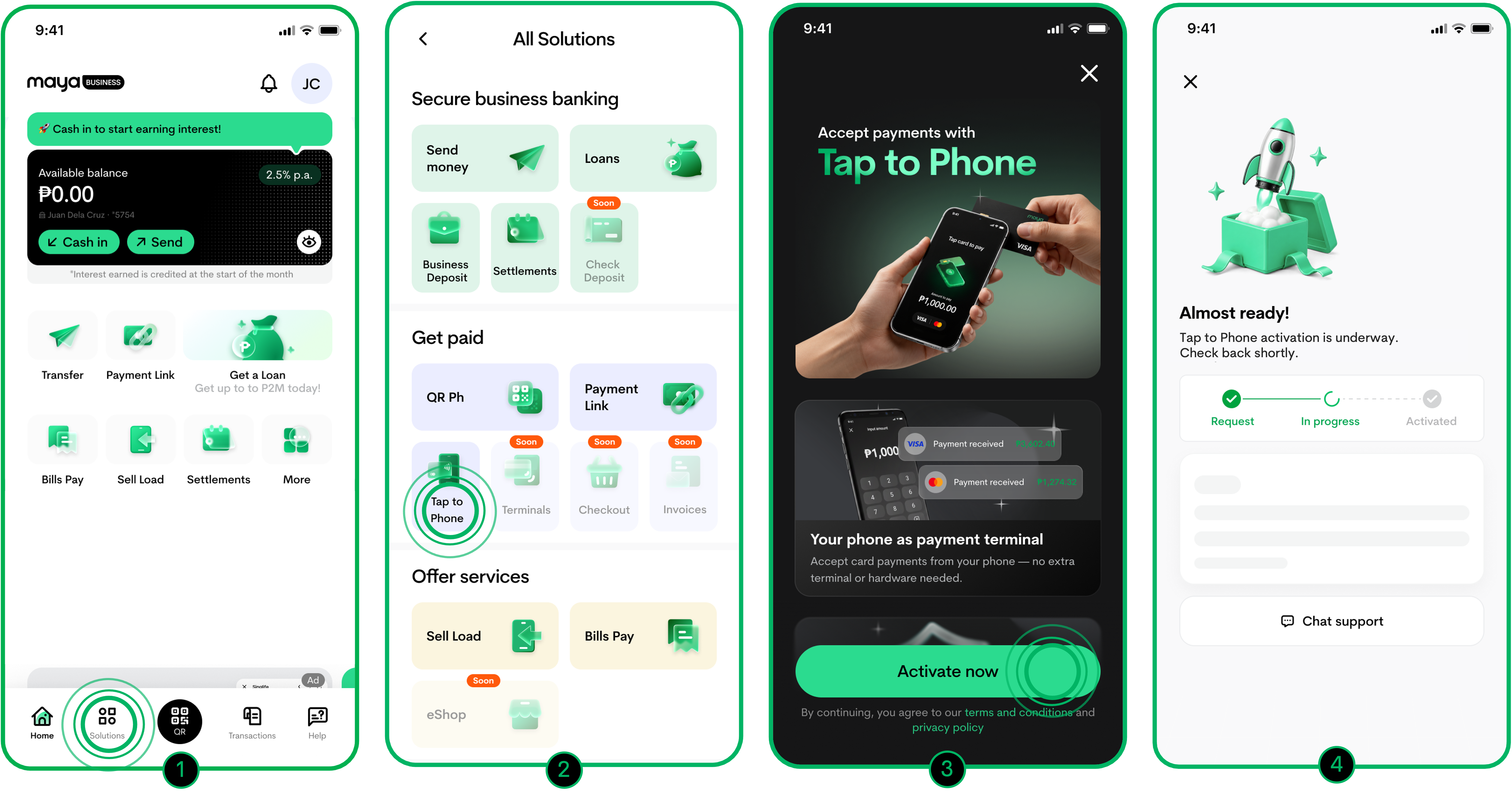
- Sign in to the Maya Business App.
- Go to Solutions.
- Select Tap to Phone.
- Tap Activate Now.
Follow the in-app process while the app checks your device and provisions Tap to Phone. Wait for the activation to complete.
Once activation is successful, Tap to Phone is ready for you to accept contactless payments.
Accept a Payment
Once Tap to Phone is activated, you can use your Android smartphone to accept contactless payments.
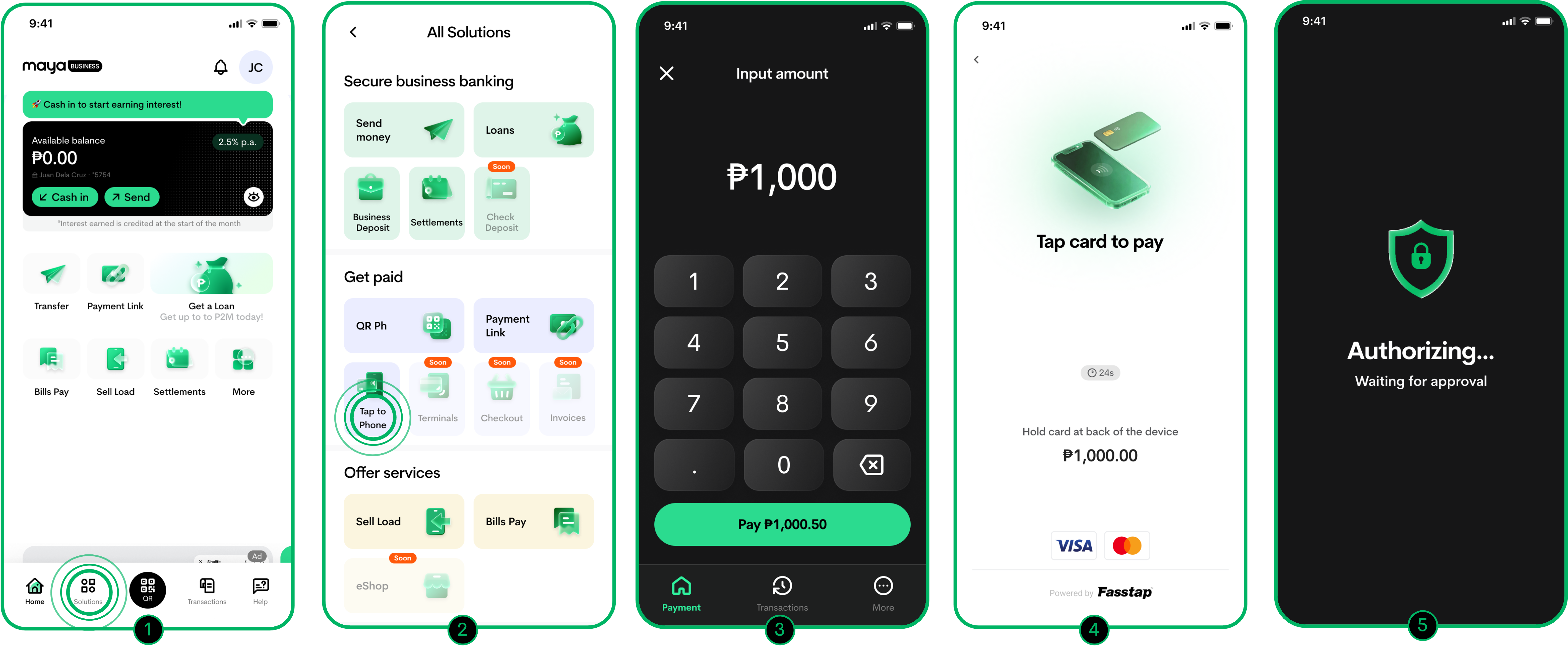
- Open the Maya Business App and go to Solutions.
- Select Tap to Phone.
- Enter the amount to collect, then confirm. Wait until the app indicates that it is ready to accept payment.
- Ask the customer to tap their contactless card on the back of your Android phone.
- Wait while the payment is authorized.
Additional Cardholder Verification
Depending on the card, the customer may be asked to complete additional verification.
The customer may need to:
- Provide a signature, or
- Enter their card PIN
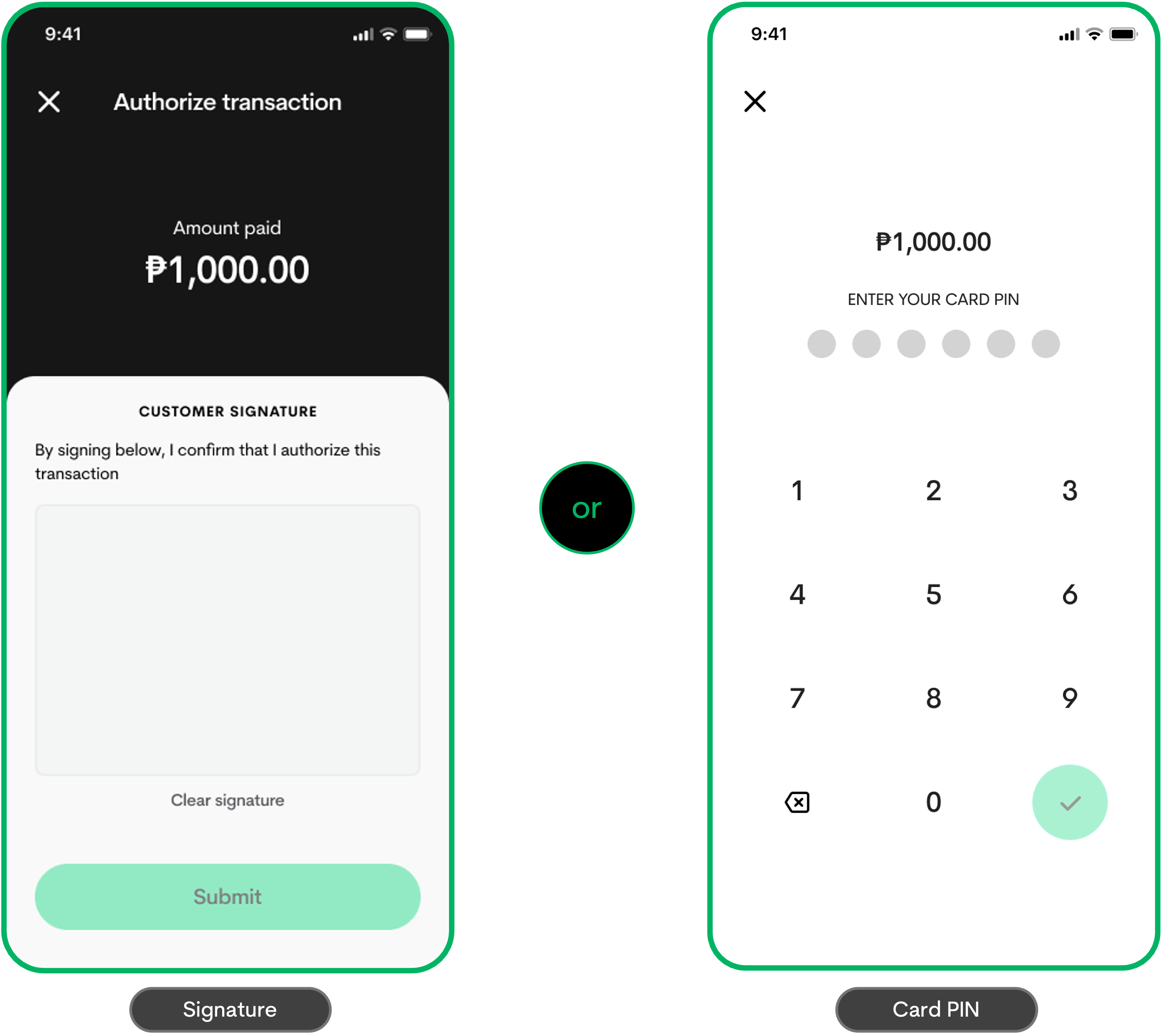
Once the payment is approved, the Maya Business App displays the successful payment confirmation.
Send a Digital Receipt
After a successful payment, you can send a digital receipt to your customer by email.
From the Payment Success Screen
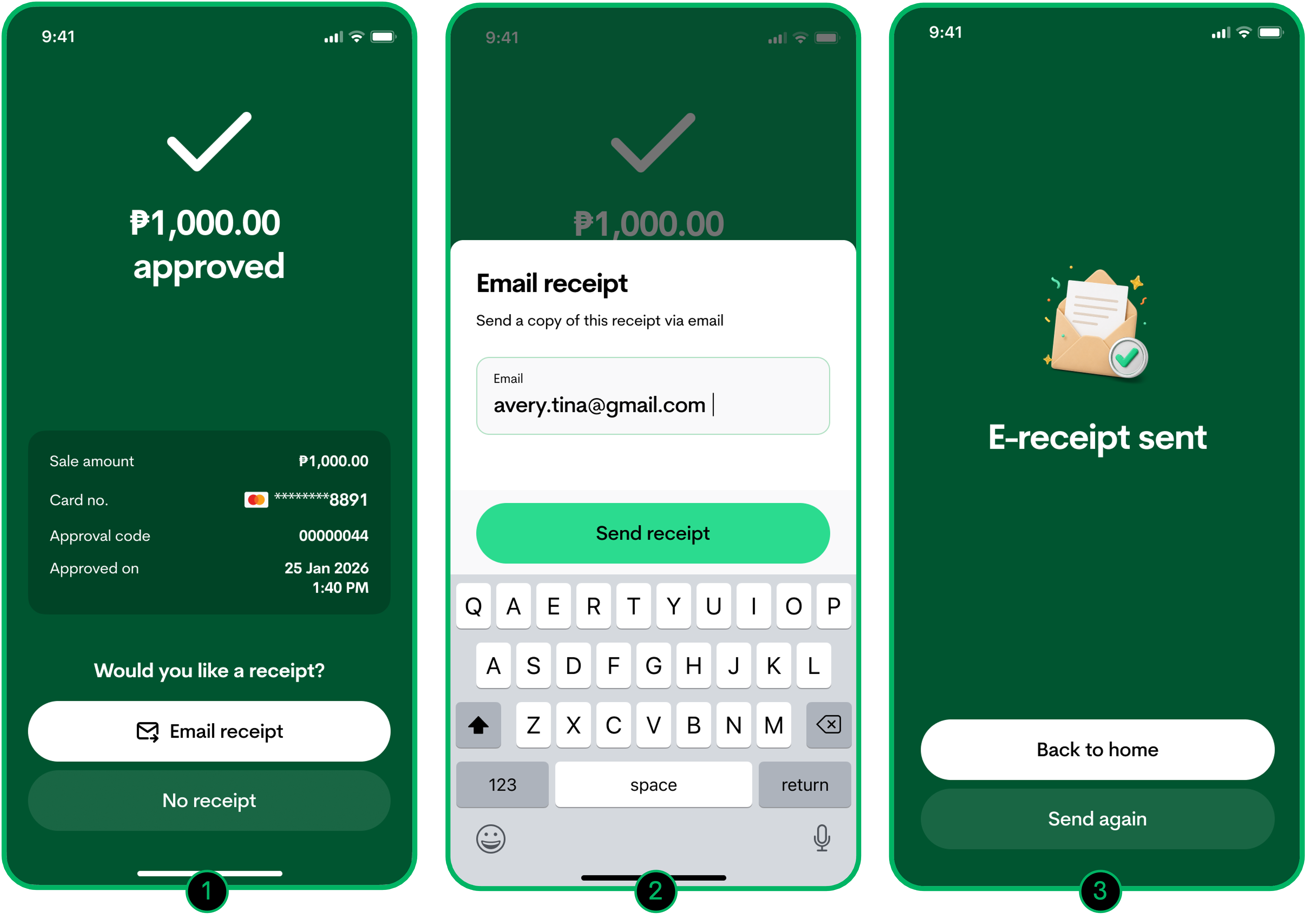
- Tap Email Receipt.
- Enter the customer's email address, then tap Send receipt.
The receipt is sent to the email address provided.
From the Transaction Dashboard
You can also share a receipt for a completed transaction from your transaction history.
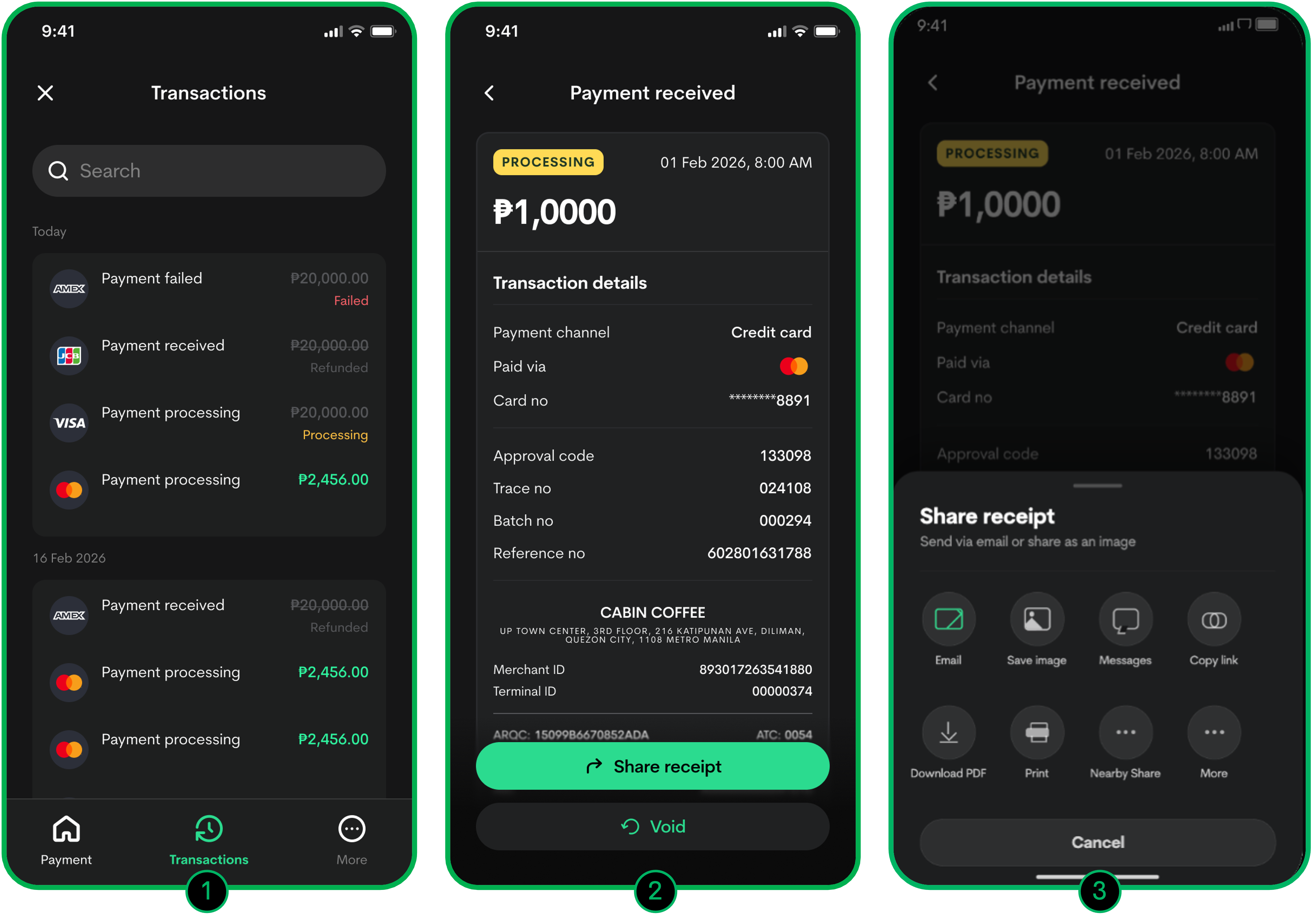
- Go to the Transaction Dashboard. Find and select the transaction.
- Tap Share Receipt.
- Choose how you want to share the receipt:
- Image
FAQs
How do I know if my phone is ready for Tap to Phone?
Maya Business App automatically checks your device. If something is missing (like NFC being off), you will be guided to fix it.
Can I use Tap to Phone on multiple phones?
While you can install the Maya Business App on multiple devices, you can use it on only one device at a time.
Do I need to enable NFC before activating Tap to Phone?
NFC is typically enabled by default on Android devices. If NFC is disabled, the Maya Business App will display a prompt during activation, directing you to your device settings to enable it.
Can I activate Tap to Phone using a web browser?
Tap to Phone activation is completed through the Maya Business App. If you try to activate it from a web browser, a QR code will be displayed. Scan the QR code to download and open the Maya Business App, then continue the activation there.
Can I use Tap to Phone only on smartphones?
No. Tap to Phone works on NFC-enabled Android devices, including compatible Android smartphones and tablets.
Updated about 3 hours ago