
Accept Payments with a Linked Maya Wallet
Authorization and Capture
This request will allow you to hold a certain amount of a customer's wallet, to temporarily lock the funds for the particular payment, and then collect it at a later time.
Use cases where you can use Auth & Capture:
- Authorize the amount first but only capture the funds once you've shipped the physical goods.
- Authorize the amount at the start of a free trial and then capture the funds at start of subscription.
- Perform a manual fraud review before capturing the funds and fulfilling the order.
Payment states
Various payment results are possible such as failed due to account validity, request and authorization hold expiry.
The standing of a Maya Payment can be identified by the payment state.
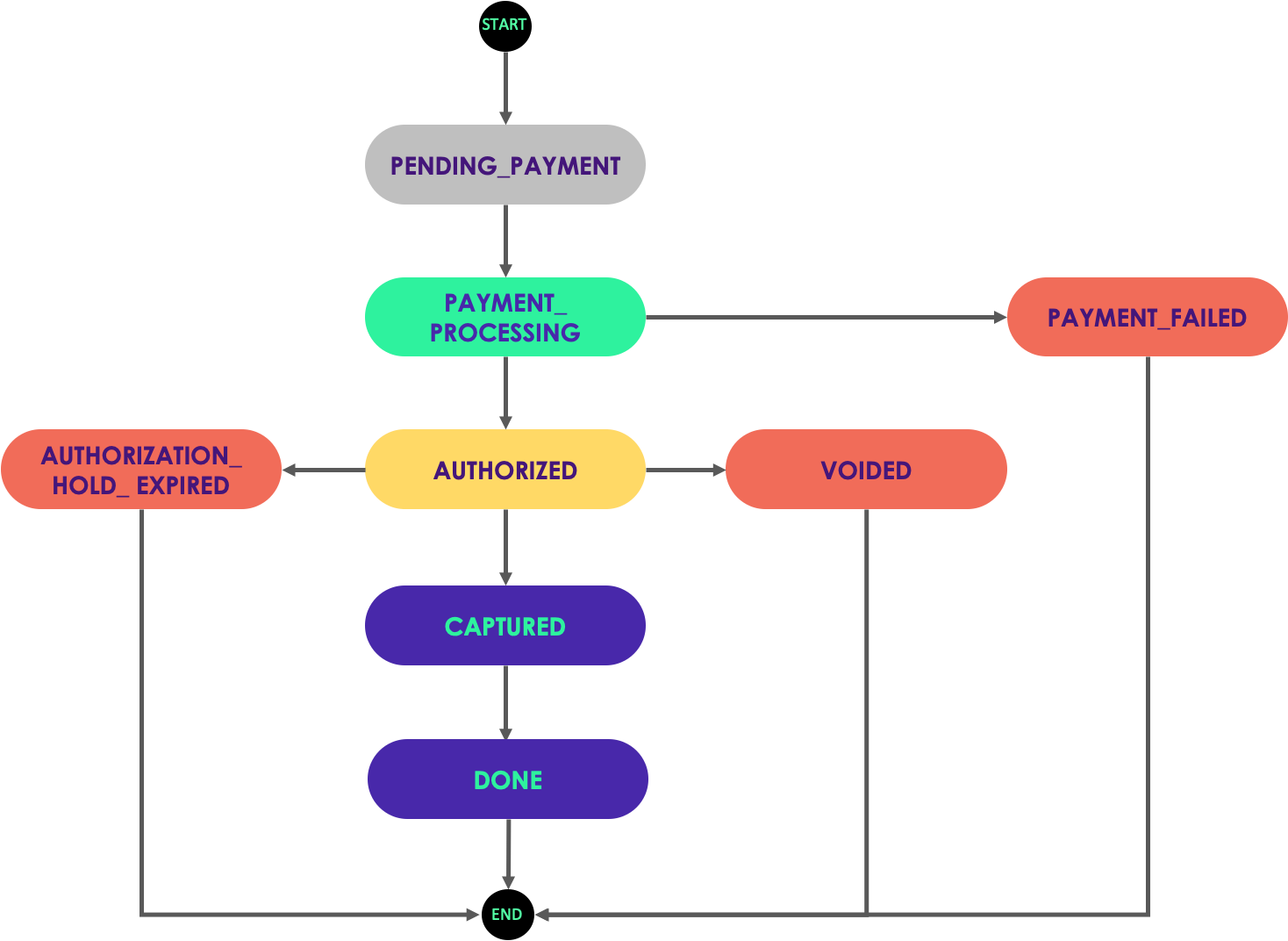
Authorization states
| State | Webhook | Description |
|---|---|---|
PENDING_PAYMENT | Not applicable | This is the initial state of payment transaction when created. No hold or movement of funds during this state. |
PAYMENT_PROCESSING | Not applicable | When validation checks are being done. |
PAYMENT_FAILED | PAYMENT_FAILED | When the transaction did not pass the validation checks. |
AUTHORIZED | AUTHORIZED | A state when a hold was successfully placed on the funds of the customer’s Maya account. |
AUTHORIZATION_HOLD_EXPIRED | Not applicable | This is when the authorization has exceeds the auth validity. |
VOIDED | Not applicable | The state when the request to void the authorization was successfully done. |
CAPTURED | CAPTURED | This is when the authorization has been successfully captured. Additional captures can be done while on this state. |
DONE | DONE | Final state of a captured authorization where succeeding captures can no longer be done. |
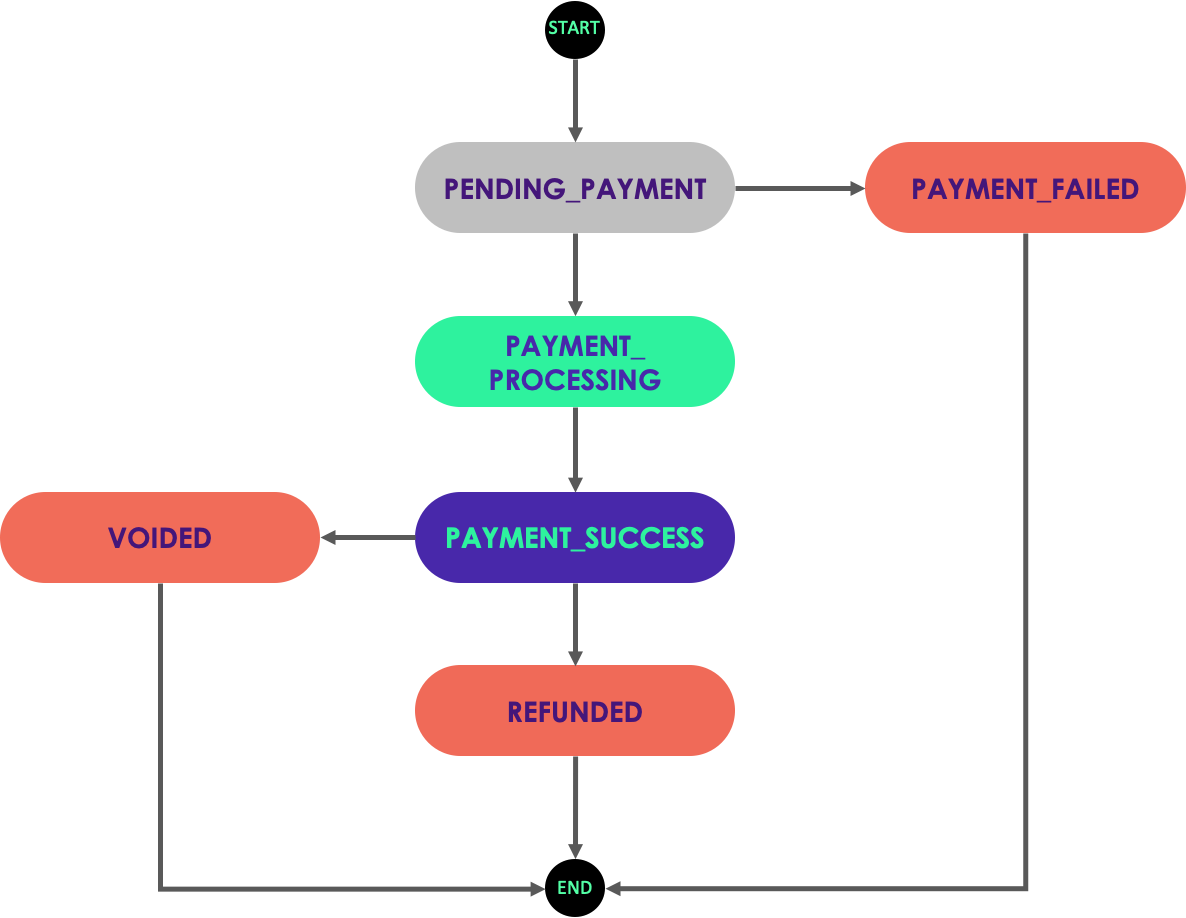
Capture and Straight Payment states
| State | Webhook | Description |
|---|---|---|
PENDING_PAYMENT | Not applicable | This is the initial state of payment transaction when created. |
PAYMENT_PROCESSING | Not applicable | When validation checks are being done. |
PAYMENT_SUCCESS | PAYMENT_SUCCESS | When the transaction pass the validation checks and has been processed. |
PAYMENT_FAILED | PAYMENT_FAILED | When the transaction did not pass the validation checks. |
VOIDED | Not applicable | The state when the request to void the authorization was successfully done. |
REFUNDED | Not applicable | The state when payment has been refunded. |
Auth and Capture Scenarios
Maya allows you to collect the transaction amount that is less than, equal to, or greater than the authorized amount depends on the type of authorization:
| Type | Description |
|---|---|
PREAUTHORIZATION |
Indicates a Preauthorization transaction, enabling the capture and clearance of amounts that are less than or equal to the authorized amount. |
FINAL |
This denotes a Final Authorization transaction, allowing capture and clearance only for the exact amount specified in the authorization request (partial captures are not supported). Any attempt to capture a different amount will result in rejection. |
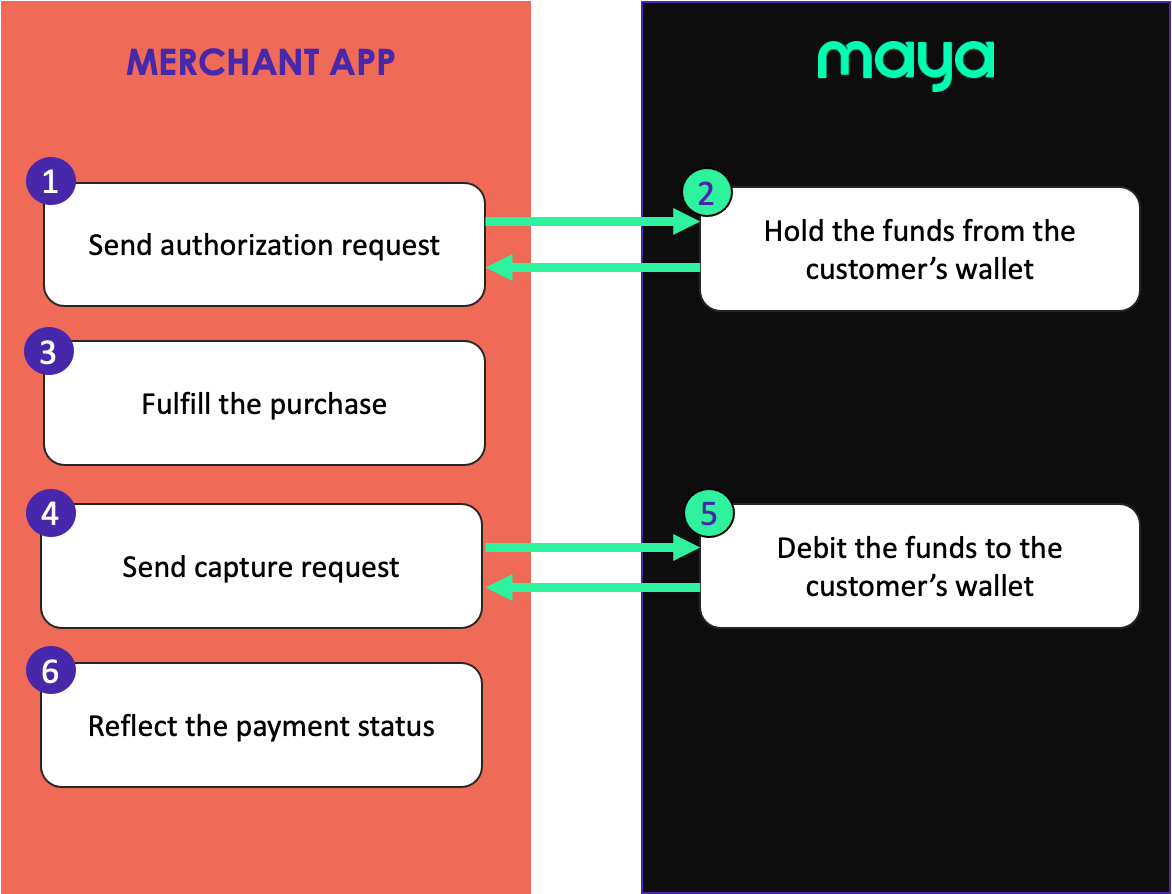
Full Capture SUPPORTED
This is the ideal scenario where amount to be captured is equal to the authorized amount. In cases like this, you just have to send a request to capture the authorized amount.
Final Partial Capture SUPPORTED
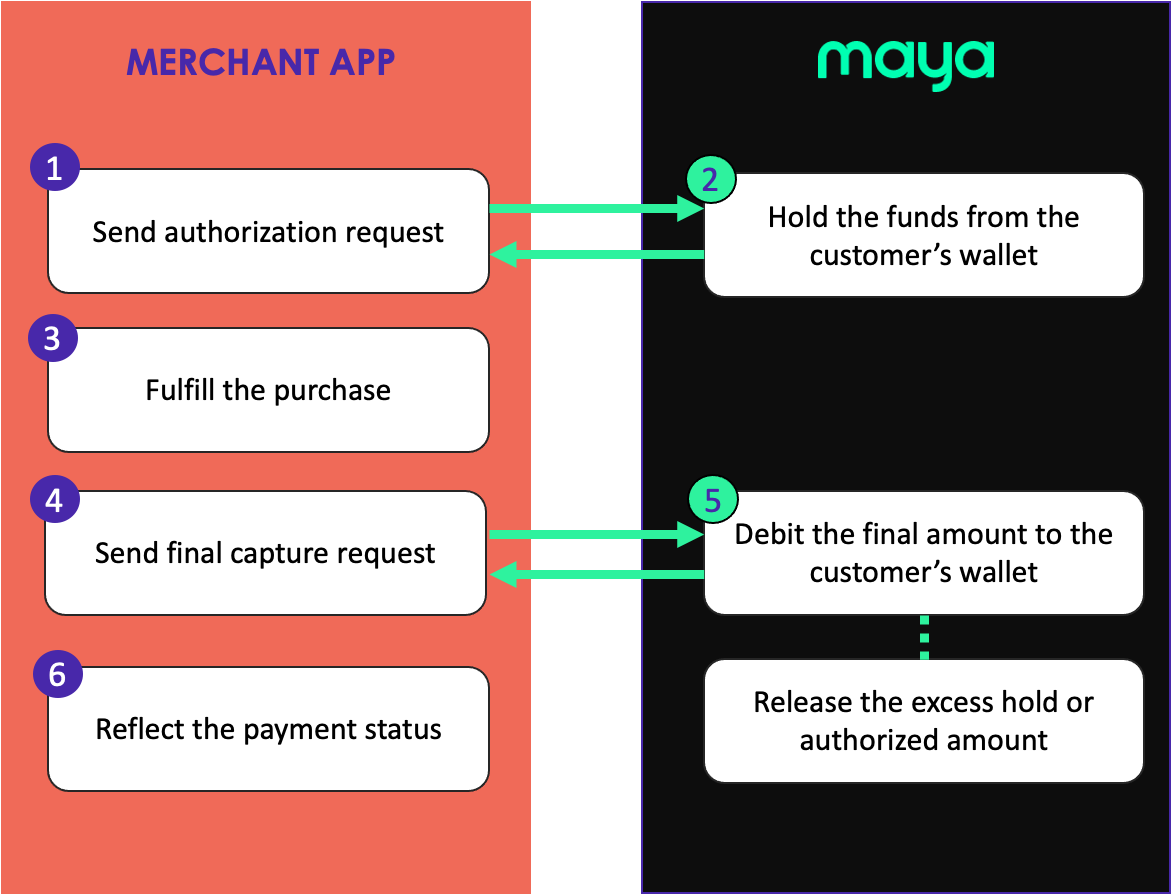
A scenario where the amount you need to capture is less than the authorized amount.
In cases like this, you should have initially sent an authorization request with the authorizationType set to PREAUTHORIZATION.
Subsequently, you can send a capture request where isFinal is set to true. Maya will only capture the final amount and automatically release the excess hold or authorized amount.
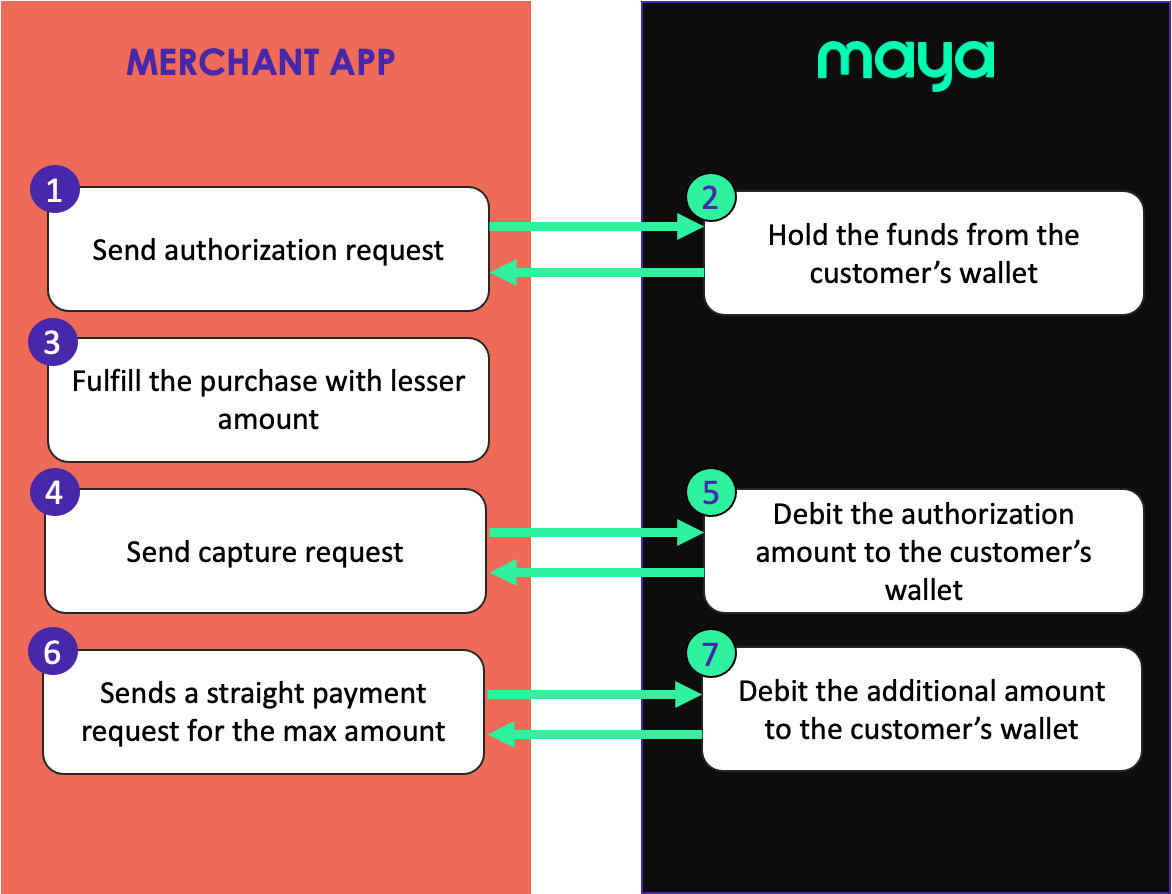
Over Capture NOT SUPPORTED
This is when the amount to be captured is greater than the authorized amount. If this is the case, you can:
- Capture the authorized amount.
- Make a Straight Payment for the remaining amount to the customer’s linked Maya account.
Keep in mind
There is no guarantee that straight payment to cover the remaining amount will succeed (e.g. Customer may no longer have sufficient balance). It will be the merchant's responsibility to establish business rules on their application to handle such scenarios.
Limitation
Current implementation does not support idempotency. Maya does not check the existence of the
request-reference-nobeing passed by the integrating system.
API Signature
API Signature is by default disabled. If you wish to enable and implement this on your integration, please reach out to your Relationship Manager.
Maya can support API signature implementation within the endpoints covered in this guide. This practice of API signature serves the purpose of ensuring the integrity of data obtained from a server. With API signature in place, it becomes essential for the integrating system to digitally sign the outgoing request and also possess the capability to authenticate the response received from Maya.
For more information, visit the API signature guide
1 Create Authorization
Click here to view full details
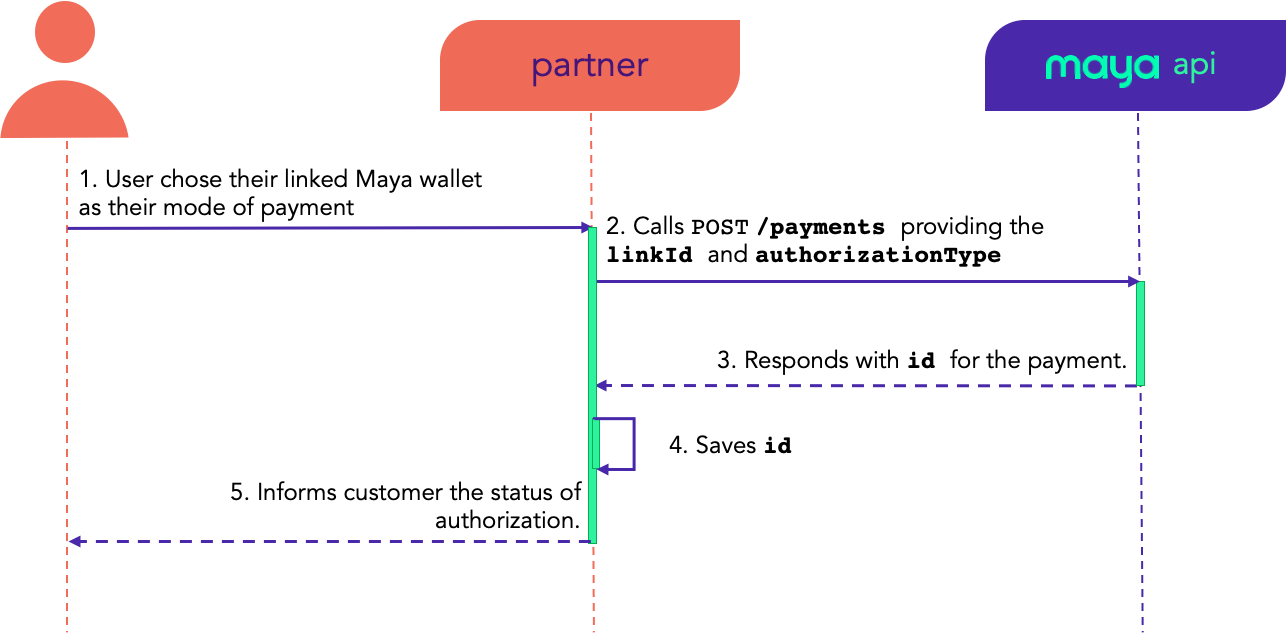
When you ask Maya to authorize a payment, Maya will do account validations, such as account status and balance check. If it passes these validations, a hold is placed on the funds in your customer’s linked Maya account.
Keep in mind
authorizationTypeis required in the create request payload to treat and process it as an authorization.
WithoutauthorizationType, transaction will be processed as a Straight Payment.paymentOptionshould bemayaWalletby default.methodshould beDIRECTby default.- Your system needs to provide the
linkIdwhen initiating a transaction.
To acquirelinkId, refer to Create Account Link.
Authorization Types
| Type | Description |
|---|---|
PREAUTHORIZATION |
Indicates a Preauthorization transaction, enabling the capture and clearance of amounts that are less than or equal to the authorized amount. |
FINAL |
This denotes a Final Authorization transaction, allowing capture and clearance only for the exact amount specified in the authorization request (partial captures are not supported). Any attempt to capture a different amount will result in rejection. |
What happens during Authorization:
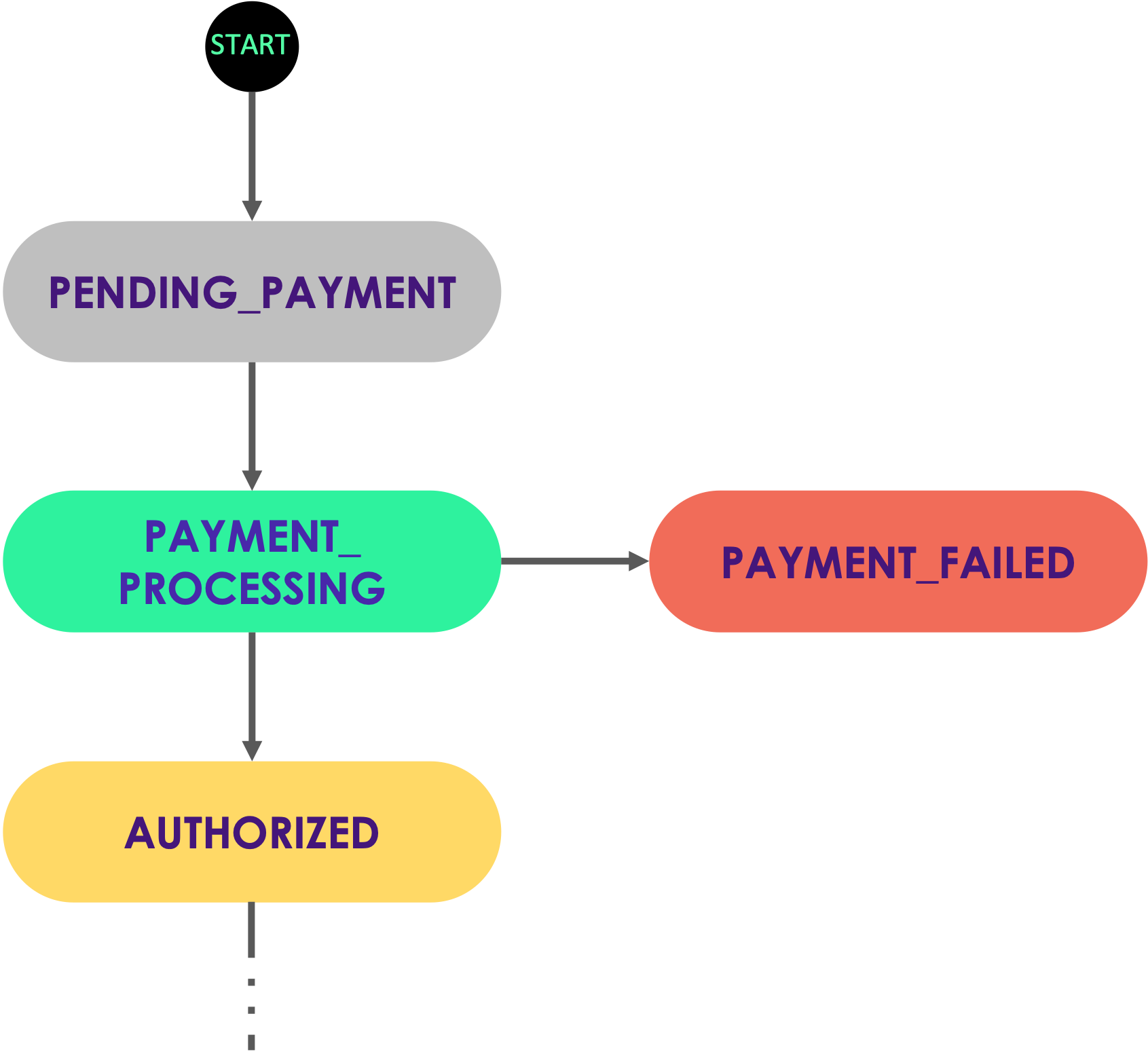
During the process of creating an authorization, Maya will create a new authorization record, which will be assigned with a unique identification number (id). Subsequently, this authorization record will go through different transitions across various authorization states until it eventually reaches the AUTHORIZED state.
State transition of the Authorization record
- Maya creates a new authorization record with an initial state of
PENDING_PAYMENT. During this state, no funds are held or moved. - Once the record is prepared for processing, Maya will transition it to the state of
PAYMENT_PROCESSING, where validation checks are conducted. - If the authorization request successfully places a hold on the funds in the customer's Maya account, the authorization record will be tagged as
AUTHORIZED. - On the other hand, if the authorization request fails to pass the validation checks, Maya will decline the request and mark the record as
PAYMENT_FAILED.
Authorization hold period
A successful authorization is held until the transaction is not past its hold period. Authorizations past their corresponding hold period that do not have successful captures, or not canceled, will result to the authorization hold being dropped.
Keep in mind
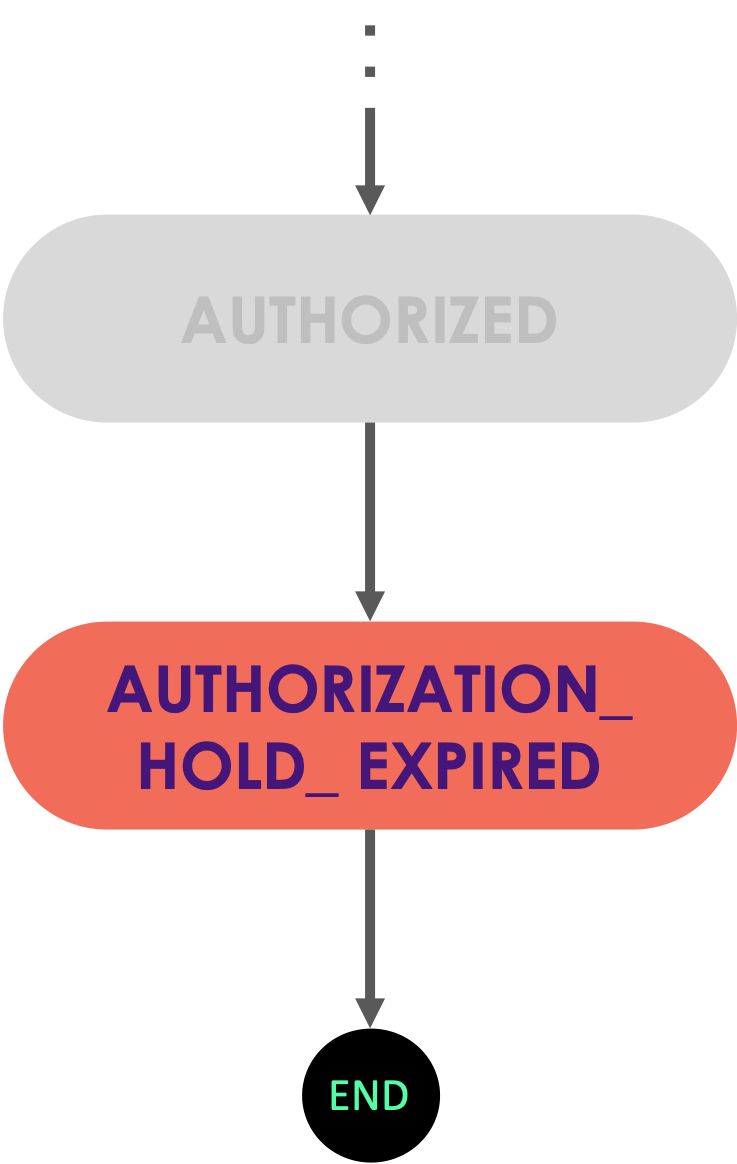
- Authorizations automatically expire after 6 days. When the authorization expires, Maya will automatically release the hold amount, and authorization will transition to
AUTHORIZATION_HOLD_EXPIRED- Successful authorization will return a
paymentIdwhich you can use for capture and retrieval.
In case the AUTHORIZED record remains uncaptured or not canceled, and it surpasses its corresponding hold period, the authorization hold will be released, and the authorization record will transition to AUTHORIZATION_HOLD_EXPIRED.
State transition of the Authorization record
Limitation
Maya does NOT support the extension of authorization holding period or delaying the validity of the authorization via an API request.
ℹ️ In this case, you can cancel the initial authorization (if not yet expired), then create a new one.
2 Capture Authorizations
Click here to view full details
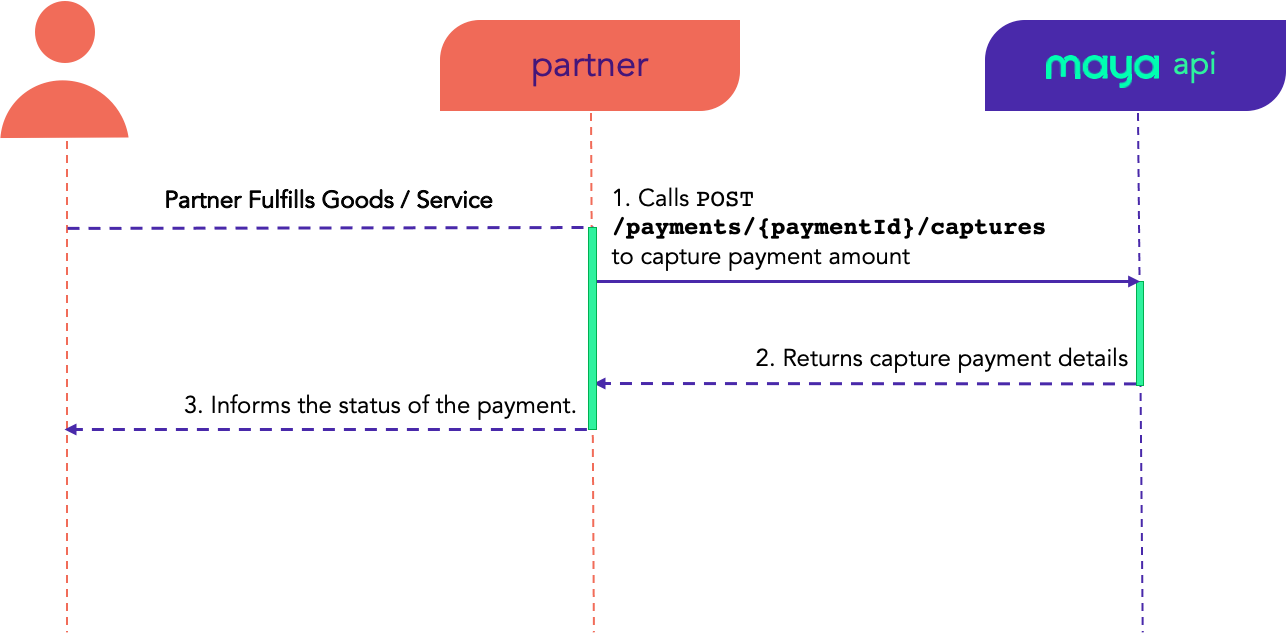
Use this endpoint to capture an authorized payment transaction. Capturing an authorization will transition to CAPTURED state.
Payments with a Linked Maya Wallet is in active development. In the meantime, Maya will only support Final Partial Capture.
The value of
isFinalin the capture payment request is currently NOT evaluated. After a successful capture, any subsequent attempts to capture the authorization will be rejected.✅ Maya strongly recommends to always pass and set
isFinalto true to keep the final partial capture behavior.
Keep in mind
- You can only capture an authorized payment transaction.
- Capture amount should be equal or less than the authorization amount.
- If an authorization has already been voided, capture attempts will fail.
ℹ️ In this case, you can either: submit a new authorization, or initiate a Straight Payment.
- Captured payment can be refunded upon success.
What happens during Capture Authorization:
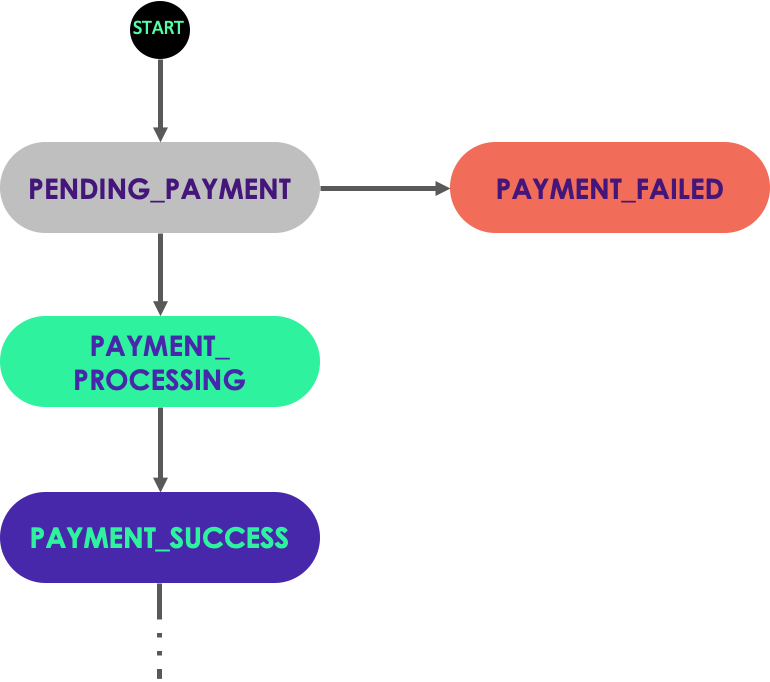
During capture authorization, Maya will create a new captured payment record, which will be assigned with a unique identification number (id). Subsequently, this captured payment record will go through different transitions across various authorization states until it eventually reaches the PAYMENT_SUCCESS state.
State transition of the Captured payment record
- Maya creates a new captured payment record, starting in the state of
PENDING_PAYMENT. - Once the record is prepared for processing, Maya will transition it to the
PAYMENT_PROCESSINGstate, during which validation checks are carried out. - If the capture request is successfully executed and funds are debited, the captured payment record will be marked as
PAYMENT_SUCCESS. - On the other hand, if the capture request fails to meet the validation requirements, Maya will decline the request and update the captured payment record as
PAYMENT_FAILED.
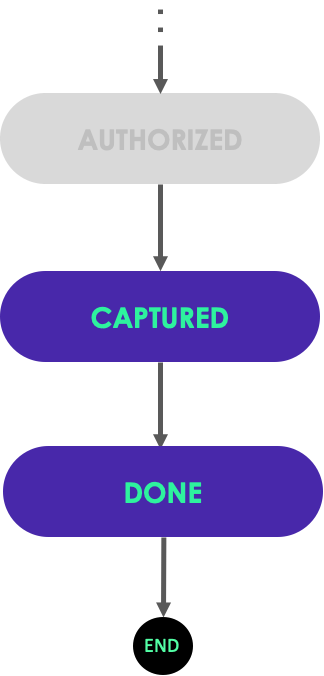
Simultaneously with the creation of the captured payment record, Maya will update the status of the corresponding authorization record once a successful capture authorization takes place.
State transition of the Authorization record
- Maya identifies the corresponding
AUTHORIZEDrecord using the authorizationid. - Maya updates the authorization state to
CAPTURED. - If the capture request is deemed final, the state of the authorization record will transition to
DONE.
3 Create webhooks for real-time payment status
Click here to view full details
Manage the payment status updates by implementing webhooks.
Keep in mind
Maya’s Webhook will trigger a maximum of 4 times.
- Immediately after the status event is triggered.
5 minsafter the previous webhook call failed15 minsafter the previous webhook call failed45 minsafter the previous webhook call failed
You can utilize the following GET endpoints as fallback when all webhook attampts fail:
Step 1: Identify the events you want to monitor and the event payloads to parse.
| Webhook | Description |
|---|---|
AUTHORIZED | A state when a hold was successfully placed on the funds of the customer’s Maya account |
CAPTURED | This is when the authorization has been successfully captured. Additional captures can be done while on this state. |
DONE | Final state of a captured authorization where succeeding captures can no longer be done. |
PAYMENT_SUCCESS | When the transaction pass the validation checks and has been processed. |
PAYMENT_FAILED | When the transaction did not pass the validation checks. |
Step 2: Create a webhook endpoint as an HTTP endpoint (URL)
This endpoint is expected to receive a POST request with JSON payload from Maya for a given account link event. The endpoint is expected to return a 2xx response status codes.
const express = require('express');
const app = express();

app.post('/webhook', async (req, res) => {
  // TODO: You will have to implement the logic of this method.
  processMayaWebhookNotificationData(req.body);

  res.send({
    success: true
  })
});

app.listen(8080, () => console.log('Listening on port ${8080}!'));Keep in mind
A webhook should be SSL-secured (https) and publicly available.
It is also recommended to use port 443 for your SSL configuration. Your application may experience network issues when integrating with Maya using non-standard ports.
Step 3: Test that your webhook endpoint is working properly.
You can execute your webhook endpoint via a simple curl command or through an API client application like Postman.
Sample Webhook Endpoint Test via curl
$ curl -s -D - -o /dev/null -X POST -H "Content-Type: application/json" \
-d '{
  "id": "0f324861-714c-441c-8829-eb1145908044",
  "isPaid": true,
  "status": "PAYMENT_SUCCESS",
  "amount": "100",
  "currency": "PHP",
  "canVoid": true,
  "canRefund": true,
  "canCapture": false,
  "createdAt": "2022-10-06T02:27:20.000Z",
  "updatedAt": "2022-10-06T02:28:01.000Z",
  "description": "Charge for [email protected]",
  "fundSource": {
    "type": "maya-credit",
    "id": "44d4d537-b3e3-4db8-830c-c9e969f43450",
    "description": "******9d77",
    "details": {
      "firstName": "Justin",
      "lastName": "Jones",
      "msisdn": "+639193890001",
      "profileId": "770993336277",
      "middleName": "******",
      "email": "******",
      "masked": "********4567"
    }
  },
  "metadata": {},
  "requestReferenceNumber": "20a26ca8-3ada-47d1-a8b6-46673d664eee",
  "paymentTokenId": "******",
  "receipt": {
    "transactionId": "******",
    "batchNo": "00000000",
    "receiptNo": "000000000000",
    "approval_code": "******",
    "approvalCode": "******"
  },
  "approvalCode": "******",
  "receiptNumber": "000000000000"
}' \
https://83ef-130-105-160-253.ngrok.io/webhook
When the output of the curl command shows a 200 response code that means that your webhook reachable and will return a status 200 OK.
HTTP/2 200
content-type: application/json; charset=utf-8
date: Mon, 14 Feb 2022 01:08:14 GMT
ngrok-agent-ips: 130.105.160.253
content-length: 18
Step 4: Save your Webhook via Create Webhook.
Register your webhook endpoints via the Create Webhook  endpoint.
The feature is in active development. For the deployed Webhook URLs that will be subscribed to CAPTURED and DONE, kindly send it to your Maya representative and Maya team will manually register it for you. Other webhook payment status can be registered via Create Webhook
endpoint.
OPT Create Straight Payment
Click here to view full details
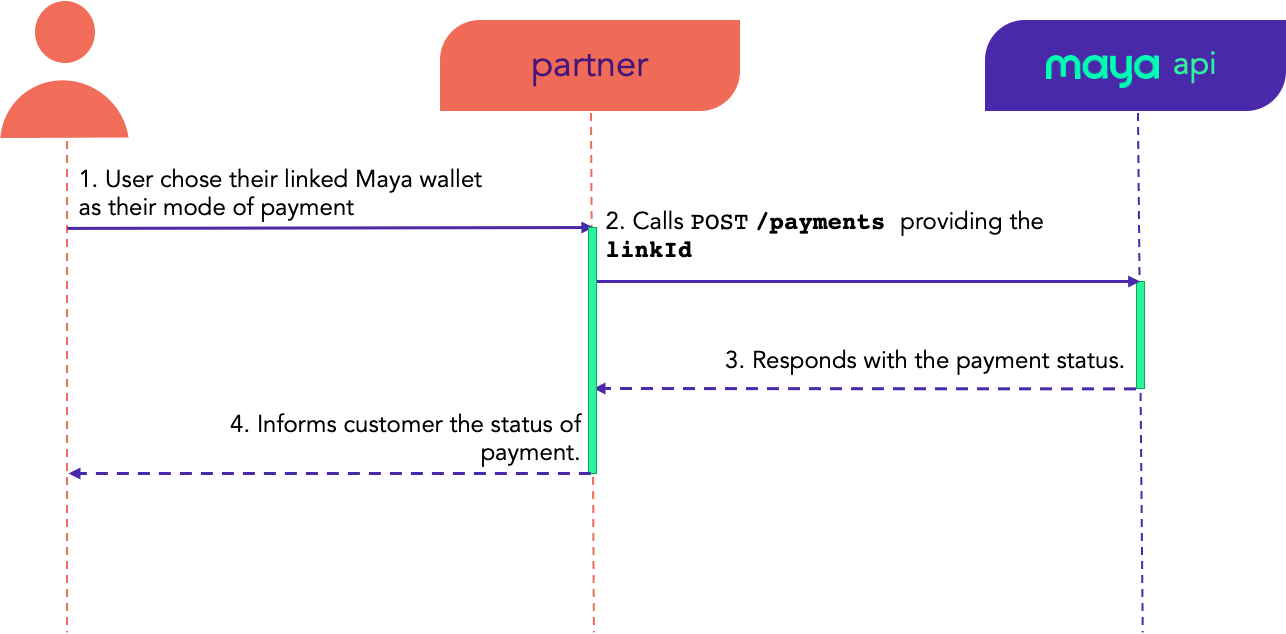
This functionality will allow you to charge the final amount directly towards your customer’s linked Maya account. It can be used in scenarios wherein there is a mismatch between the authorized amount and the final amount to be charged.
Keep in mind
- Straight payment is treated and processed as a separate transaction.
- Straight payment will not capture nor cancel the prior authorization.
- Your system needs to provide the
linkIdwhen initiating a transaction.
To acquire thelinkId, refer to Create Account Link.
What happens during Straight Payment:
During straight payment, Maya will create a new payment record, which will be assigned with a unique identification number (id). Subsequently, this payment record will go through different transitions across various payment states until it eventually reaches the PAYMENT_SUCCESS state. For this instance, no authorization and capture steps are needed.
State transition of the Payment record
- Maya creates a new payment record, starting in the state of
PENDING_PAYMENT, where no funds are debited. - Once the record is prepared for processing, Maya will transition it to the
PAYMENT_PROCESSINGstate, during which validation checks are carried out. - If the payment request is successfully executed and funds are debited, the payment record will be marked as
PAYMENT_SUCCESS. - On the other hand, if the payment request fails to meet the validation requirements, Maya will decline the request and update the payment record as
PAYMENT_FAILED.
OPT Get Payment using ID
Click here to view full details
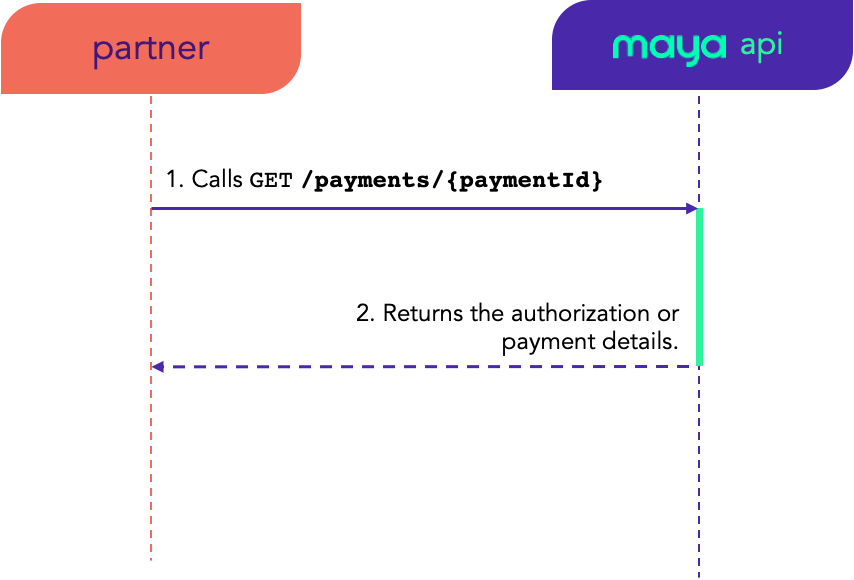
Use this endpoint to retrieve authorization or straight payment details you will be needing for validation. This endpoint requires paymentId which should be provided as request parameter.
OPT Get Payment using RRN requestReferenceNumber
requestReferenceNumberClick here to view full details
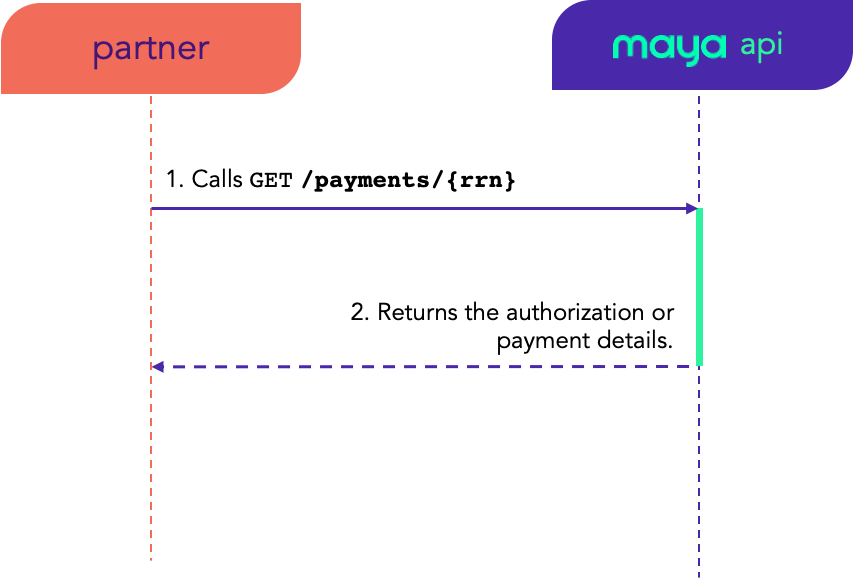
Use this endpoint to retrieve authorization or straight payment details you will be needing for validation. This endpoint requires rrn or the requestReferenceNumber which should be provided as request parameter.
OPT Get Captured Authorization
Click here to view full details
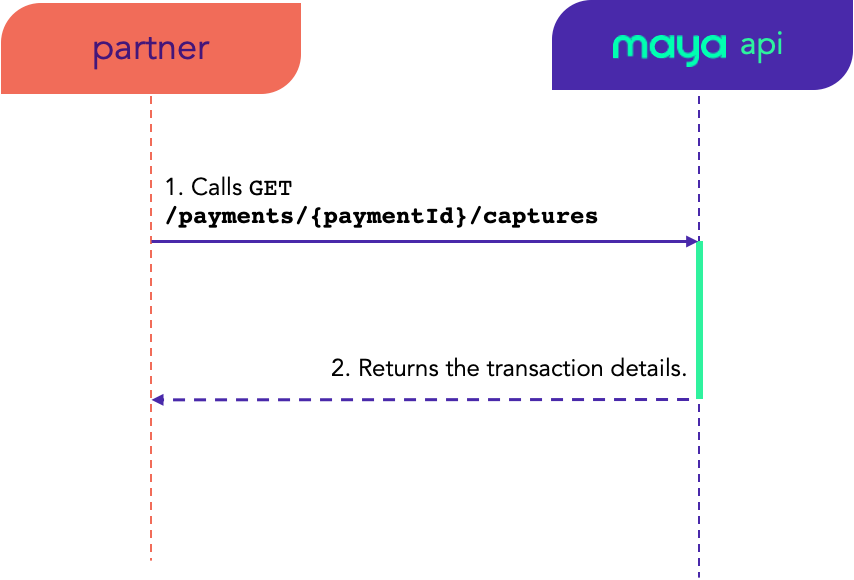
Use this endpoint to retrieve transaction details of a captured authorization. This endpoint requires paymentId which should be provided as request parameter.
OPT Void Authorization
Click here to view full details
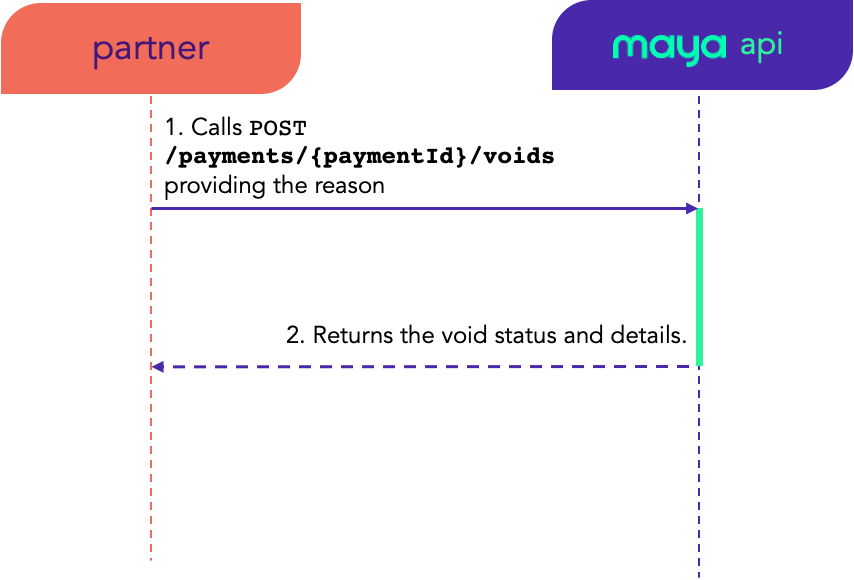
Use this endpoint to void an authorized payment. Upon successful void, Maya will release the hold placed on the customer’s funds.
Keep in mind
- Upon voiding, authorization will transition to
VOIDEDstate.- Upon successful voiding of the authorized payment, releasing of the hold amount is real-time.
- If an authorization has already been voided, succeeding cancellation attempts will fail.
What happens during Void Authorization:
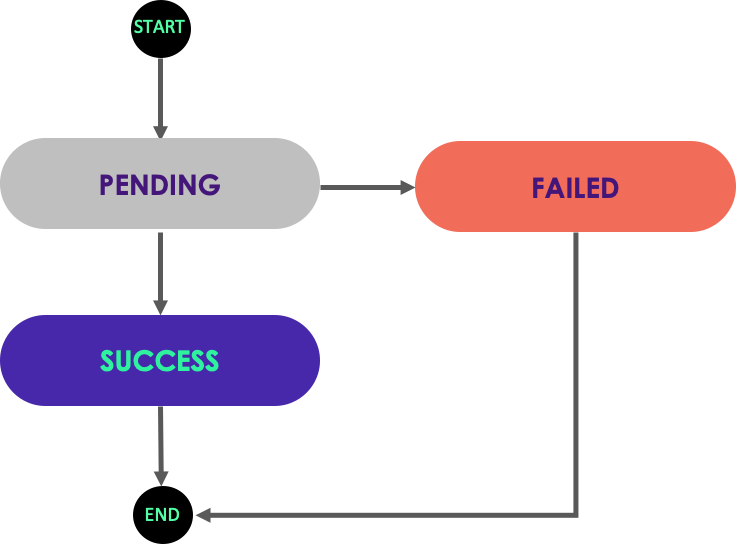
During void authorization, Maya will create a new void record, which will be assigned with a unique identification number (id). Subsequently, this void record will transition to SUCCESS or FAIL state.
State transition of the Void record
- Maya creates a new void record, starting in the state of
PENDING. - If the void is successfully executed, the void record will be marked as
SUCCESS. - On the other hand, if the void fails to meet the validation requirements, Maya will decline the request and update the record as
FAILED.
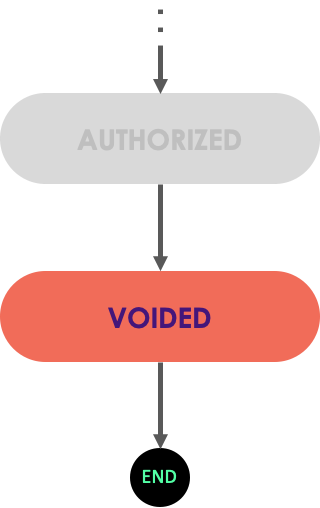
Simultaneously with the creation of the void record, Maya will update the status of the corresponding authorization record and transition it VOIDED state once a successful void takes place.
State transition of the Authorization record
OPT Get Void Authorization
Click here to view full details
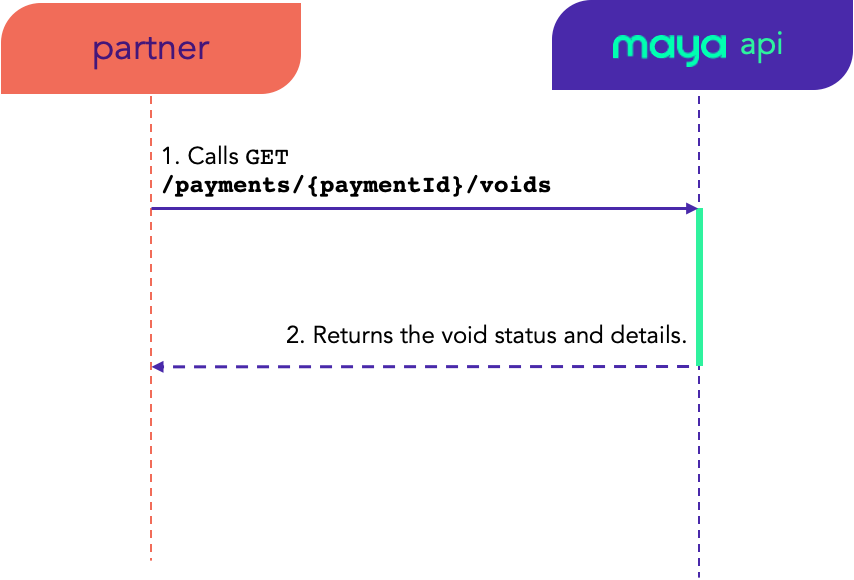
Call this endpoint to get all voids requested for a certain paymentId.
OPT Refund Captured Payments
Click here to view full details
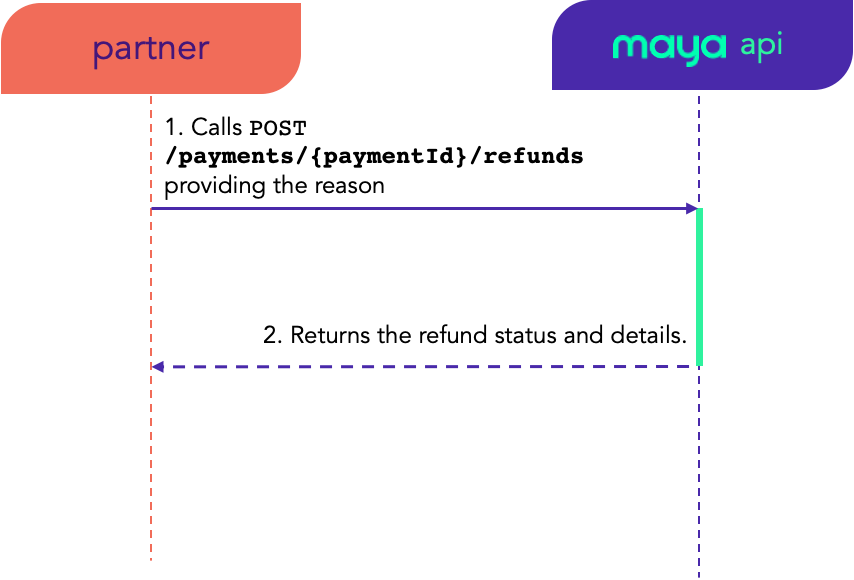
Call this endpoint to request for a refund for the captured payments. Upon successful refund, Maya will void and refund the transaction.
Keep in mind
- You can only refund a captured payment.
- Upon successful refund, captured payment will transition to
REFUNDEDstate.
What happens during Refund Captured Payments:
During refund, Maya will create a new refund record, which will be assigned with a unique identification number (id). Subsequently, this payment record will transition to SUCCESS or FAIL state.
State transition of the Refund record
- Maya creates a new refund record, starting in the state of
PENDING. - If the refund is successfully executed, the refund record will be marked as
SUCCESS. - On the other hand, if the refund fails to meet the validation requirements, Maya will decline the request and update the record as
FAILED.
Simultaneously with the creation of the refund record, Maya will update the status of the corresponding payment record and transition it REFUNDED state once a successful void takes place.
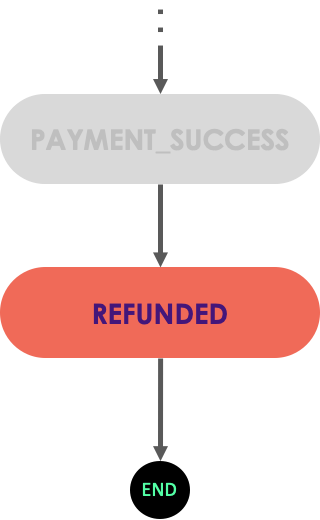
State transition of the Payment record
OPT Get Refund
Click here to view full details
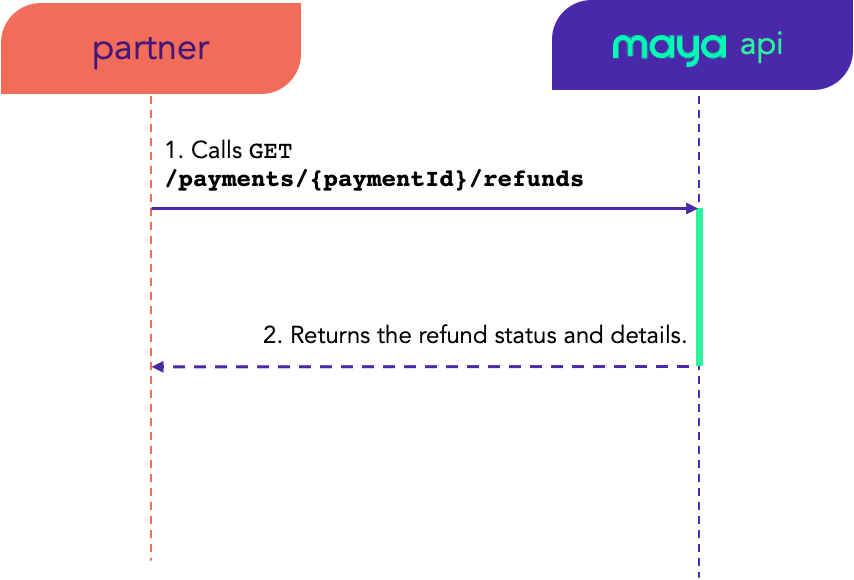
Call this endpoint to get all refunds requested for a certain paymentId.
OPT Test Payment
Click here to view full details
Use the test payment endpoint to conduct a dry run to verify the eligibility of the linked account and availability of funds before making a transaction. Performing a Test Payment will NOT result in any deduction from the user's wallet balance.
Test Payment endpoint can ONLY do the following:
- Validate if state of the account link (
linkId) is eligible to make a transaction - Validate if wallet has sufficient balance to create a transaction
Keep in mind
Please note that a test payment does not guarantee that the subsequent authorization or direct payment will be successful, especially in the following scenarios:
- Account balance may change due to external events, like subscription payments from another merchant, which could happen between the test payment and the actual authorization or transaction creation.
- Other account verifications, such as wallet active status and account limits, will be evaluated during the actual authorization or transaction creation (e.g., Create Authorization
).
Call this endpoint by providing the linkId and the transaction amount you want to verify prior to the actual authorization or charge.
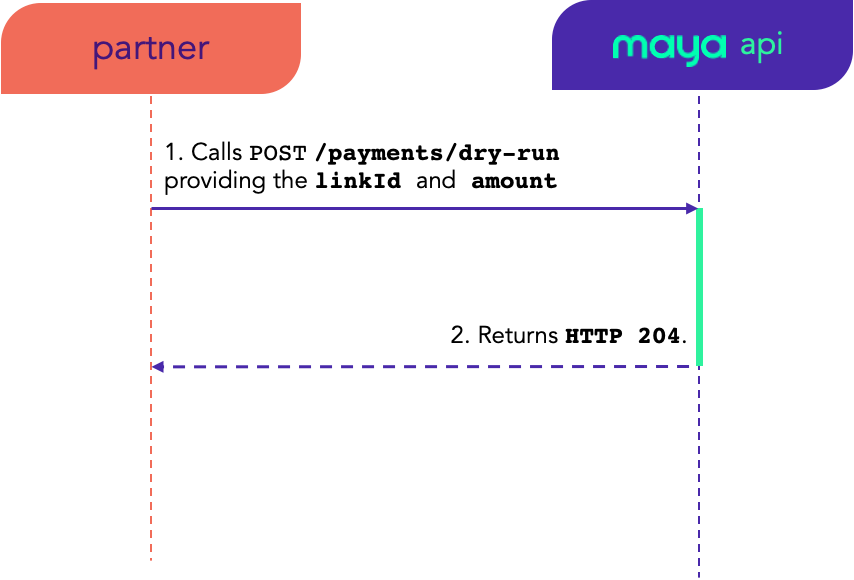
If the account link is valid and has sufficient balance to make the transaction, this endpoint will return a HTTP 204 response. Otherwise, it will return an error response with the error details (see sample 🔴 400 response body of POST /payments/v2/payments/dry-run ).
Errors and Handling
Acquire a better understanding of errors and their resolution methods to ensure appropriate management of errors.
Maya adopts a RESTful architecture and relies on HTTP responses and error codes to notify clients about the outcome of their requests, whether successful or not.
Application Error Codes
When an error occurs, the following is the response format:
{
    "result": "FAIL",
    "error": {
        "code": "ANC001",
        "message": "Missing/invalid parameters.",
    }
}
The following are the error codes and messages related to account linking operations.
General errors
Error (code) |
HTTP Status | Description (message) |
What to do? |
|---|---|---|---|
2553 |
400 | Missing/invalid parameters. | Will be encountered when any of the required request payload properties are missing and/or are not abiding with the specifications. It is recommended to validate your request and make sure you provide the complete payload properties with valid values. |
PY0064 |
400 | Invalid JSON Format. |
Will be encountered when payload request is not a valid JSON format.
|
PY9999 |
400 | System is unreachable / timed out. |
|
PY0001 |
400 | Generic system error. |
A catch-all error code for any other error not specified, would suggest to retry the operation.
|
Account related errors
Error (code) |
HTTP Status | Description (message) |
What to do? |
|---|---|---|---|
AL007 |
400 | Account link does not exist. | The provided |
PY0122 |
400 | Issuer system is unavailable. |
System is unavailable.
|
PY0105 |
400 | Account has insufficient balance to perform this transaction. | Linked account or the account being used does not have sufficient balance to make the transaction.
|
PY0123 |
400 | Account limit exceeded. | Linked account or the account being used has reached the maximum number of transactions.
|
PY0136 |
400 | Account is compromised. | You will encounter this error when account was closed and is no longer usable.
|
PY0163 |
400 | Account Link Service Error. |
An unexpected error occurred when using a wallet link.
|
Authorization errors
Error (code) |
HTTP Status | Description (message) |
What to do? |
|---|---|---|---|
PY0116 |
400 | Transaction could not be completed. |
The operation you are trying to do with the transaction has encountered error.
|
PY0101 |
400 | Acquirer decline due to high risk. |
You will encounter this error when the transaction was suspected to be fraud.
|
PY0037 |
400 | Currency is not supported. |
Will be encountered when you use the incorrect currency.
|
PY0137 |
400 | Decline due to high risk. |
You will encounter this error when the transaction was suspected to be fraud.
|
PY0044 |
400 | Payment is invalid. |
Will be encountered when |
PY0009 |
404 | Payment does not exist. |
Will be encountered when |
Capture errors
Error (code) |
HTTP Status | Description (message) |
What to do? |
|---|---|---|---|
PY0094 |
400 | Payment is not available for capture. |
Will be encountered when the payment state is not allowed to be captured.
|
PY0095 |
400 | Amount must be less than or equal to amount authorized. |
This error will occur when the requested amount to capture is greater that the authorization amount.
|
PY0096 |
400 | Amount must be equal to amount authorized. |
Refer to the Auth & Capture scenarios and follow the recommended steps. |
Void and Refund errors
Error (code) |
HTTP Status | Description (message) |
What to do? |
|---|---|---|---|
PY0045 |
400 | Payment is not available for void. |
This error will occur when payment status is not eligible for void.
|
PY0073 |
400 | Transaction cannot be processed. Cannot void a transaction after cut off time. |
Authorized payments can only be voided before the 12am cut-off time. |
PY0063 |
404 | Void does not exist. |
Will be encountered when no void requests existed for the |
PY0046 |
404 | Refund does not exist. |
Will be encountered when |
PY0082 |
400 | Refund already exists. |
Will be encountered when |
PY0047 |
400 | Payment is ineligible for refund. |
This error will occur when payment status is not eligible for refund.
|
PY0048 |
400 | Requested refund amount is greater than the original amount. |
This error will occur when the requested amount to refund is greater that the original amount.
|
PY0072 |
400 | Transaction cannot be processed. Cannot refund a transaction before cut off time. |
Capture payments can only be refunded after the 12am cut-off time. |
Timeouts
If the timeout is reached upon calling Maya's endpoints, an an HTTP 504 Gateway Timeout error will be encountered. Please refer to the timeout settings for each endpoint below, as well as the recommended actions to take.
| API Endpoint | Timeout | What to do? |
|---|---|---|
| Create Payment | 30seconds | Try to retrieve the payment by using the Get Payment By RRN endpoint to confirm if the payment was successfully created. If not created, make another attempt at creating the payment. If the timeout issue continues despite multiple retry attempts, please escalate the matter by reporting it to the Relationship Manager or submit a ticket through the Maya Developer Hub Service Desk
|
| Test Payment | 30seconds | It is recommended for your application to retry testing payment. If the timeout issue continues even after several retries, report the issue to the Relationship Manager or submit a ticket through the Maya Developer Hub Service Desk
|
| Get Payment | 30seconds | It is recommended for your application to retry the retrieval of payment. If the timeout issue continues even after several retries, report the issue to the Relationship Manager or submit a ticket through the Maya Developer Hub Service Desk
|
| Capture Payment | 30seconds | Try to retrieve the payment by using the Get Payment By ID to see if the payment was captured successfully by checking if Additionally, call Get Payment Captures endpoint to check the status of the capture attempt. If not yet captured, make another attempt at capturing the payment. If the timeout issue continues even after several retries, report the issue to the Relationship Manager or submit a ticket through the Maya Developer Hub Service Desk
|
| Get Payment Captures | 30seconds | It is recommended for your application to retry the retrieval of payment captures. If the timeout issue continues even after several retries, report the issue to the Relationship Manager or submit a ticket through the Maya Developer Hub Service Desk
|
| Refund Payment | 30seconds | Try to retrieve the payment by using the Get Payment By ID to see if the payment was refunded successfully by checking if Additionally, call Get Payment Refunds endpoint to check the status of the refund attempt. If not yet refunded, make another attempt at refunding the payment. If the timeout issue continues even after several retries, report the issue to the Relationship Manager or submit a ticket through the Maya Developer Hub Service Desk
|
| Get Payment Refunds | 30seconds | It is recommended for your application to retry the retrieval of payment refunds. If the timeout issue continues even after several retries, report the issue to the Relationship Manager or submit a ticket through the Maya Developer Hub Service Desk
|
| Void Payment | 30seconds | Try to retrieve the payment by using the Get Payment By ID to see if the payment was voided successfully by checking if Additionally, call Get Payment Voids endpoint to check the status of the void attempt. If not yet voided, make another attempt at voiding the payment. If the timeout issue continues even after several retries, report the issue to the Relationship Manager or submit a ticket through the Maya Developer Hub Service Desk
|
| Get Payment Voids | 30seconds | It is recommended for your application to retry the retrieval of payment voids. If the timeout issue continues even after several retries, report the issue to the Relationship Manager or submit a ticket through the Maya Developer Hub Service Desk
|
Updated 1 day ago