
Maya Account Linking
Maya Account Linking allows your customers to link their Maya account directly in your application. With this solution you can provide a secure yet seamless payment experience for your customers.
Why use it
- One-time user authentication during linking to verify the eligibility of your customer’s Maya account.
- No test charges during account linking.
- Passwordless payments. Once linked, customers can use their Maya account for payment seamlessly.
How Maya Account Linking works
A Maya Account Link represents a single Maya Account holder, which may have eligibility to use their Maya Wallet (e-wallet) as fund source.
Keep in mind
- A Maya Account Link is identified through link ID (
id) - a unique string in UUID format.- Account link is bound to your API keys. With this, you could only utilize link ID by using the corresponding API keys
- You can use this ID to track and manage a Maya Account Link.
User Experience
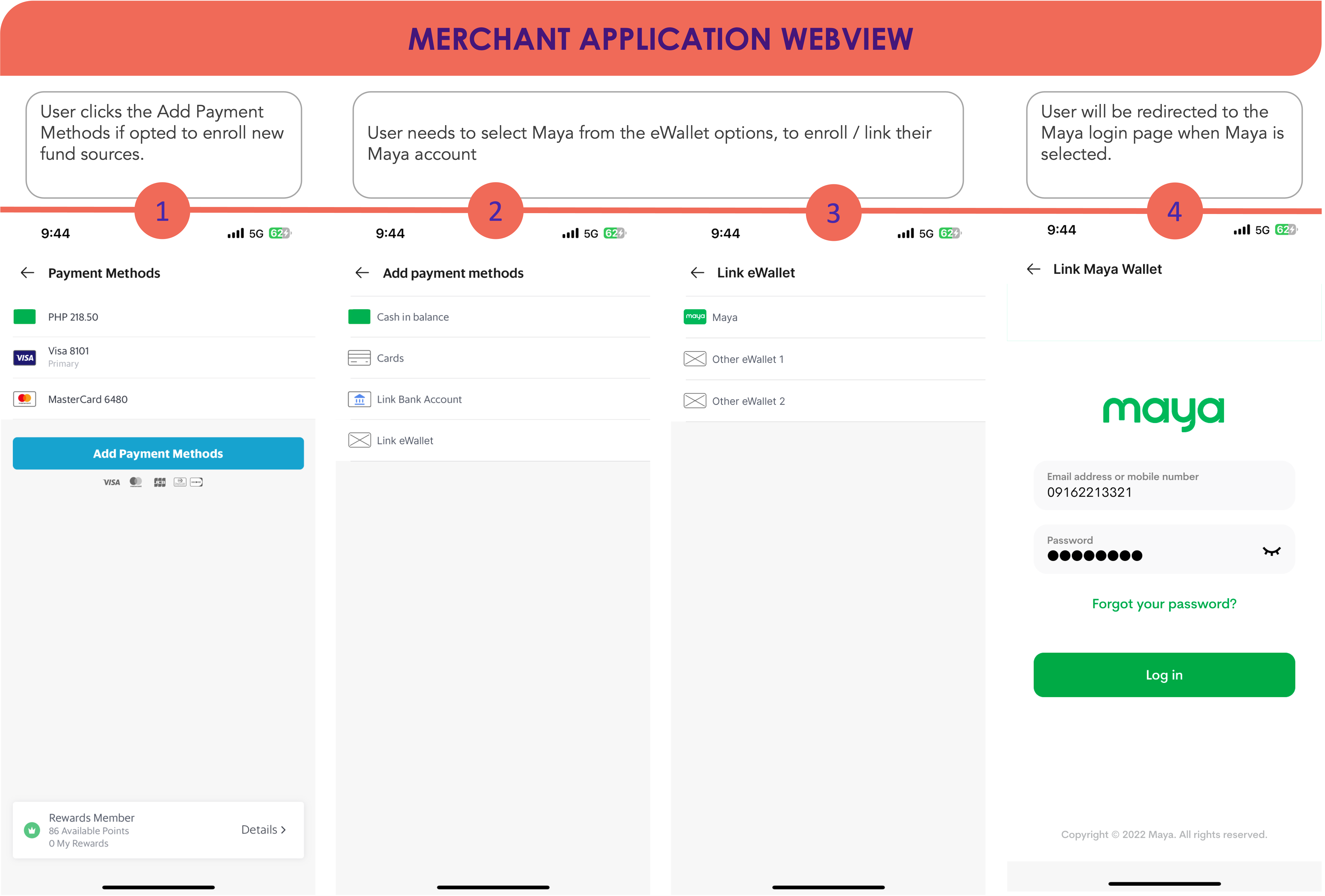
With Maya’s Account Linking, customers need to complete the authentication process by providing their Maya user, password, and one-time password (OTP).
1. Initiate Linking
2. Authorize and Confirm Linking
The following Maya pages will be rendered in your application's webview.
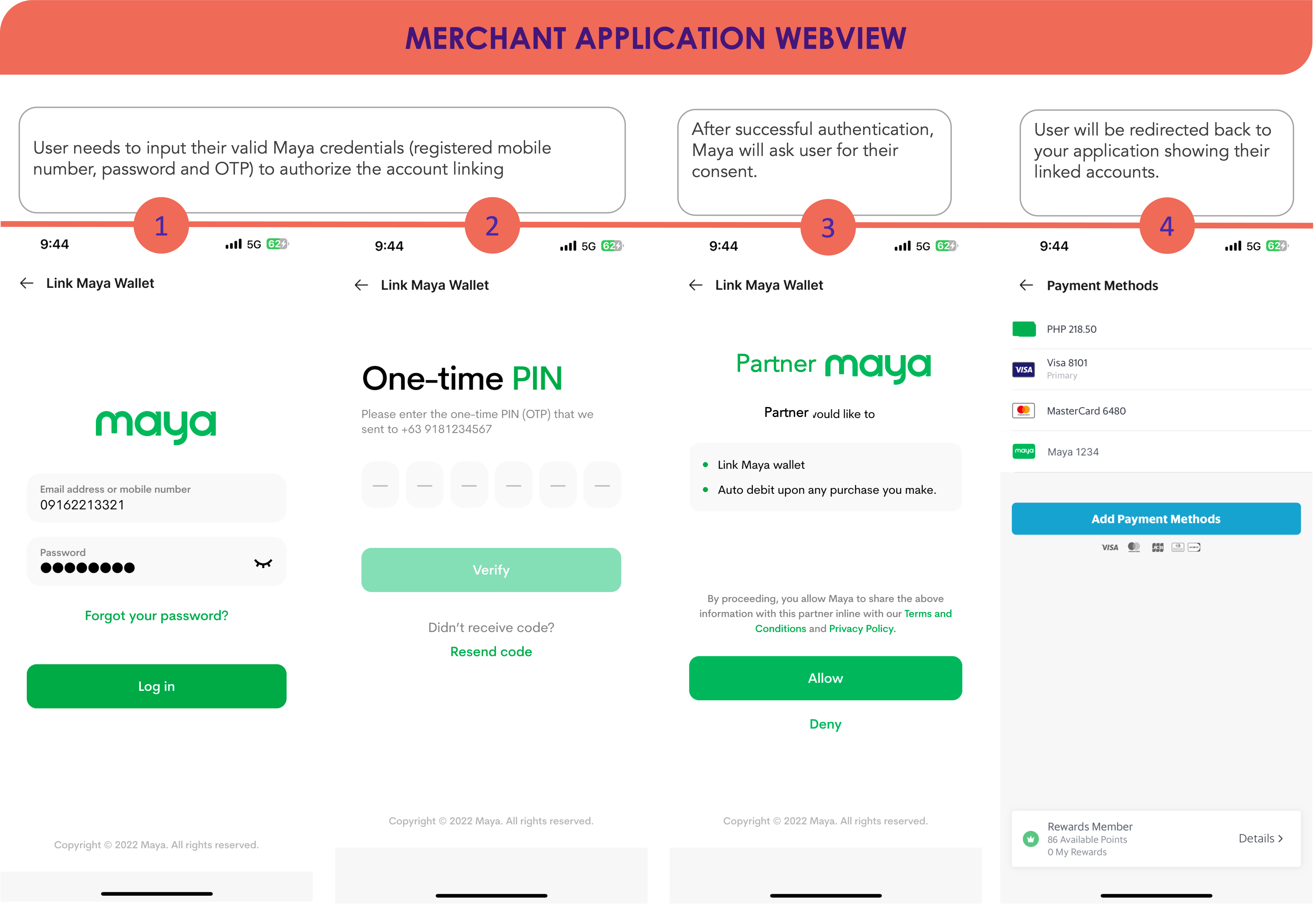
| Consent Scenario | Expected Result |
|---|---|
| When customer clicks Allow AND NO errors encountered during linking | Maya will redirect customer to your success page or to the URL provided in redirectUrl.success of your API request for account linking. See Account Link for details. |
| When customer clicks Allow BUT encountered an error on linking | Maya will redirect customer to your error page or to the URL provided in redirectUrl.failure of your API request for account linking. See Account Link for details. |
| When customer clicks Deny | Maya will redirect customer to your cancel page or to the URL provided in redirectUrl.cancel of your API request for account linking. See Account Link for details. |
Create New Maya Account
New Maya Account creation can be done via the Maya Mobile App only. Customers need to exit your application and get the Maya app
to create an account..
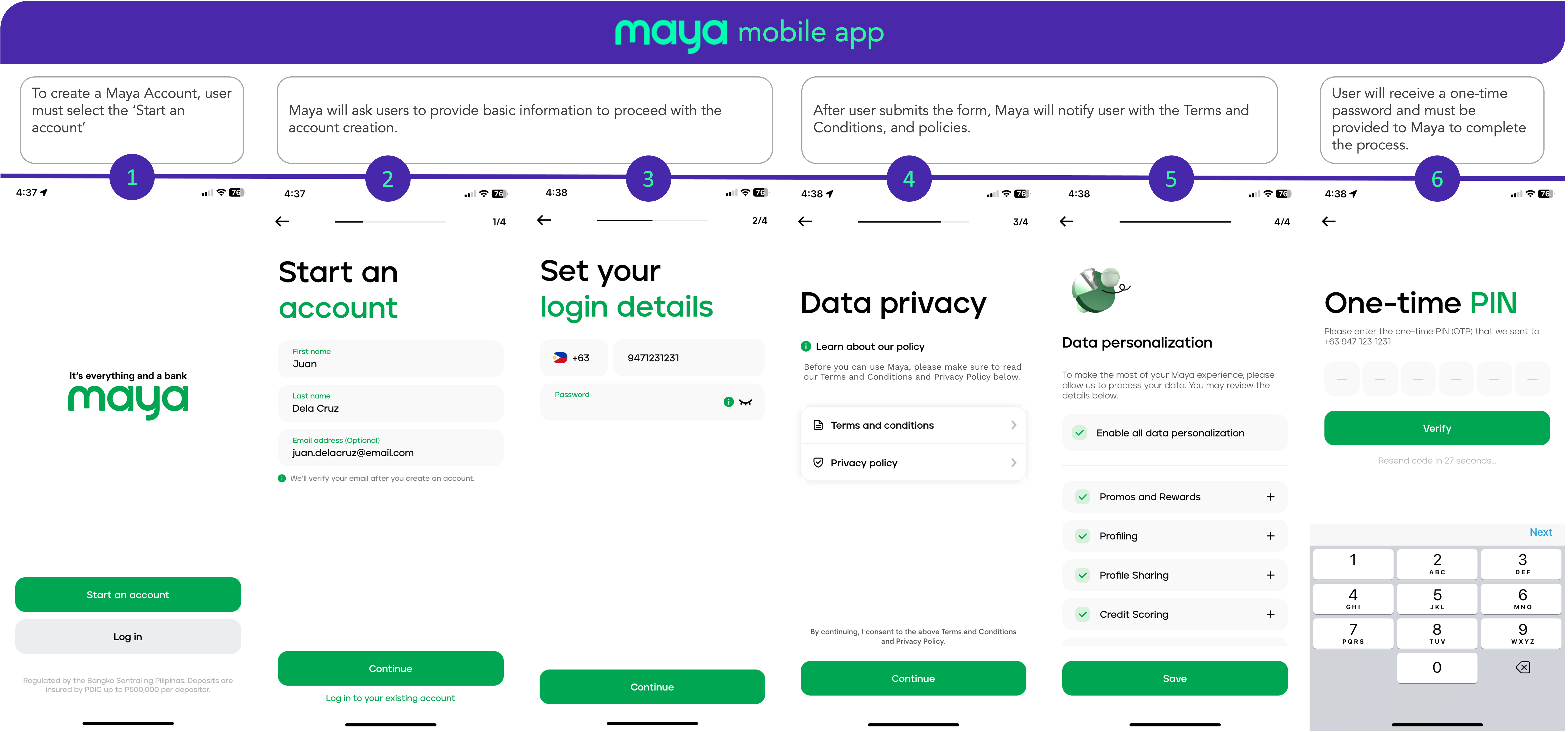
After creating an account, customer may revert back to your application to initiate linking of customer's Maya account..
Reset Password
Password reset will be rendered within the your applications webview except for the verification via email where user has to open their email account and click the redirect link separately.
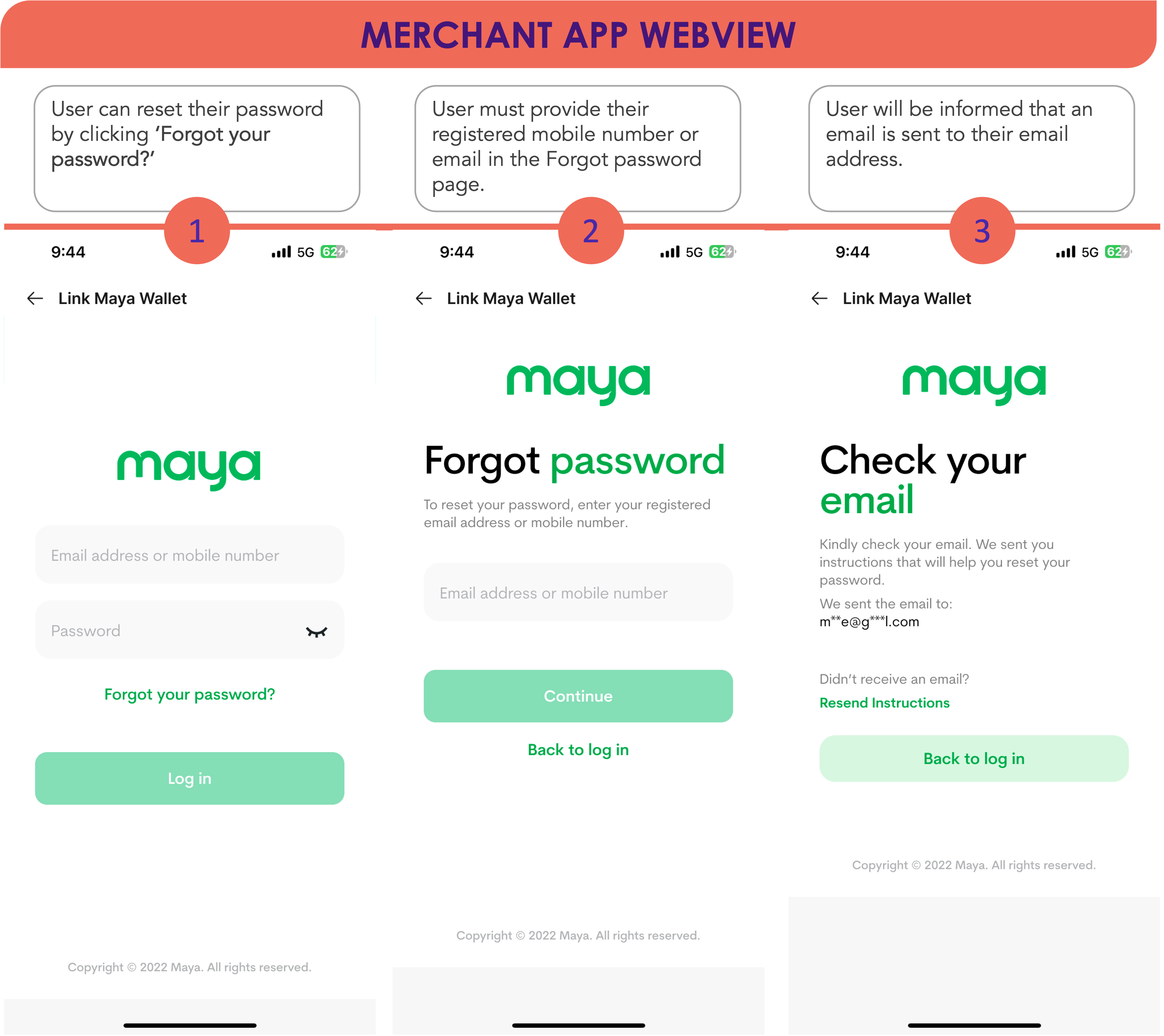
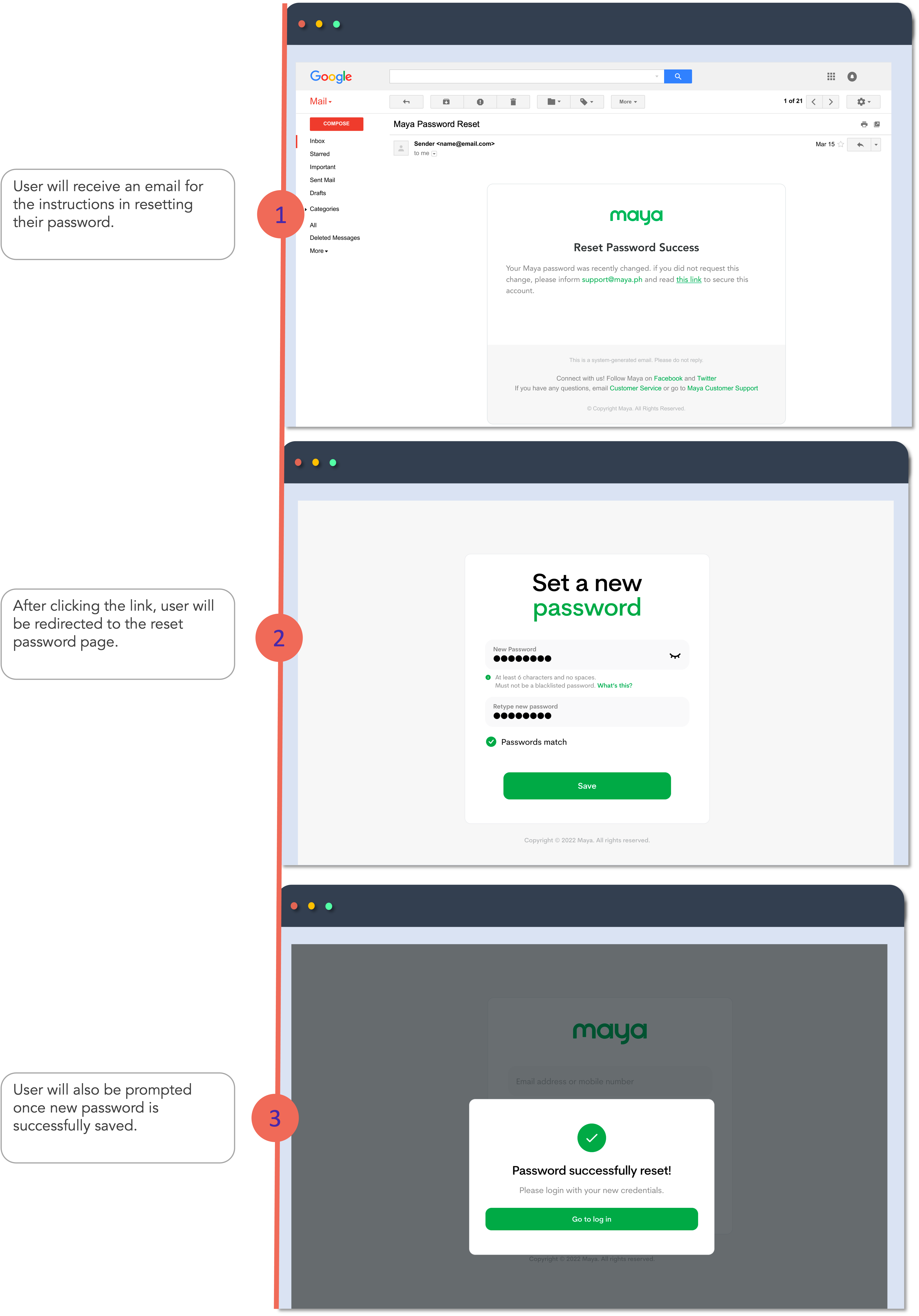
After successful reset of password, customer may revert back to your application to initiate linking of customer's Maya account..
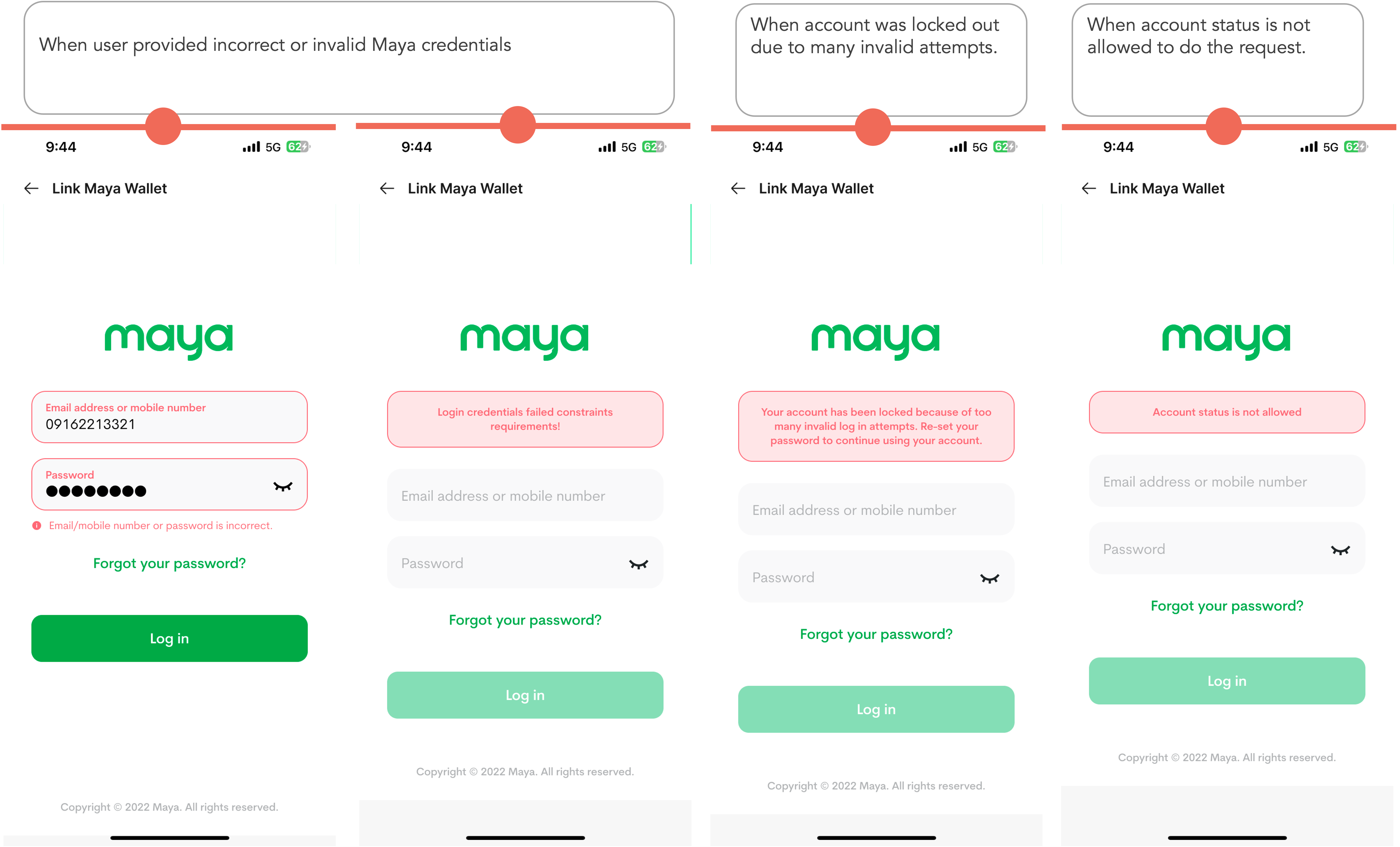
Validation Errors
In these scenarios, customers will revert back to your application when session or request is cancelled.
Maya will prompt the user accordingly when provided with incorrect credentials during login.
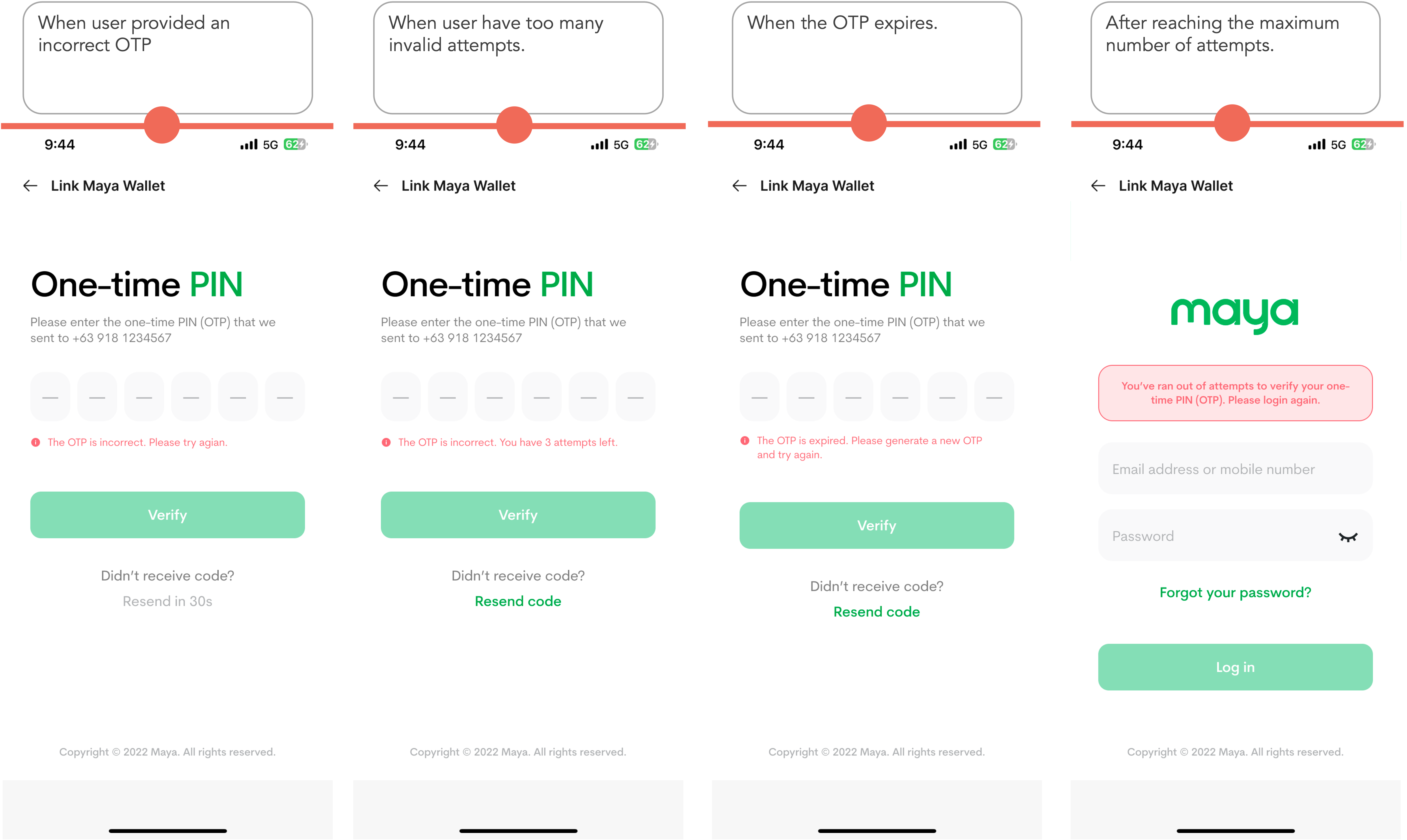
Maya will also provide information on the errors that may encounter during one-time password (OTP).
Account Link Validity and Expiration
When a Maya Account Link is created, it will be usable unless it gets cancelled or deactivated by the merchant.
Account Link ExpirationSelf-expiration of Maya Account Link is not yet supported but may be implemented in the upcoming iterations.
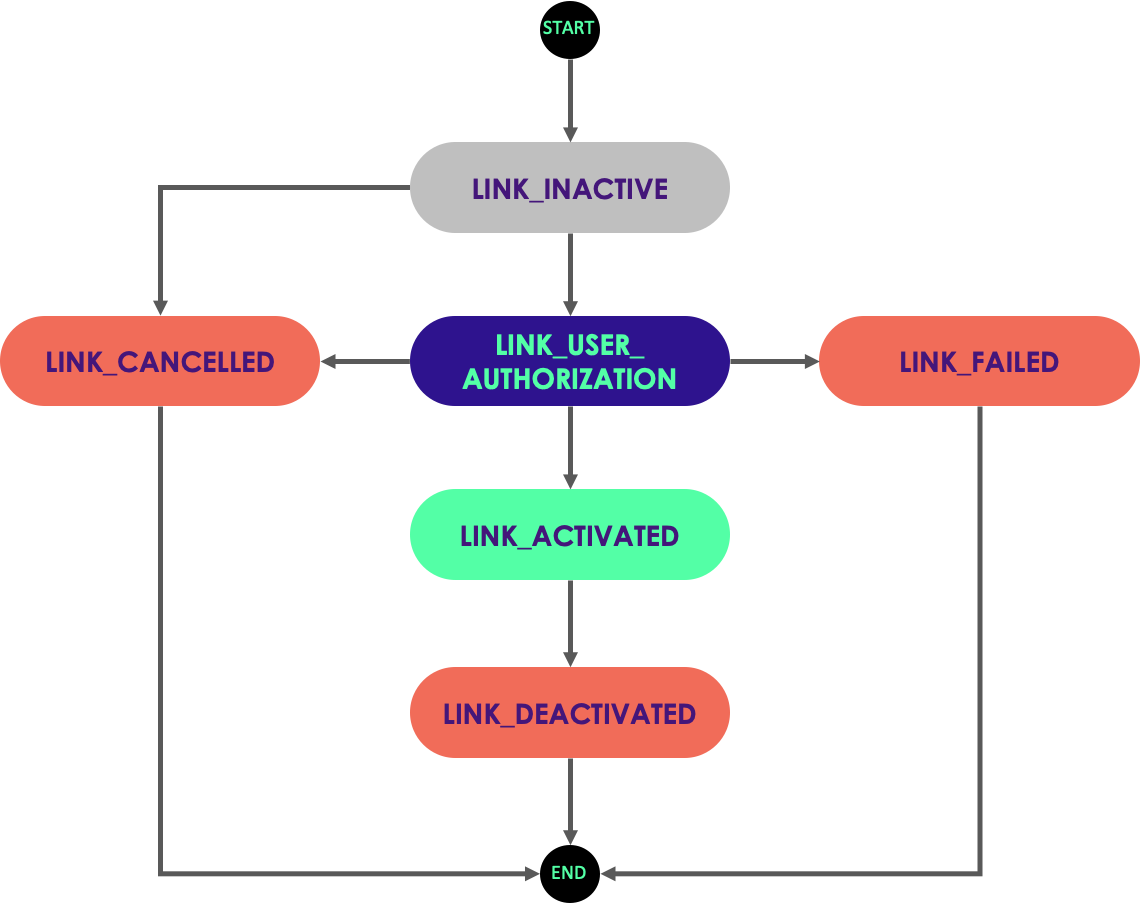
Account Link States
Account linking can also fail (for example, a customer fails to provide correct credentials or have deliberately cancelled the action), so various linking outcomes are possible.
The standing or validity of a Maya Account Link can be identified by the account link state.
| State | Webhook | Description |
|---|---|---|
LINK_INACTIVE |
Not applicable | When account linking has been initiated but no authorization of the account holder is done yet. This is the initial state. |
LINK_USER_AUTHORIZATION |
Not applicable | When there is an attempt on authorizing the account linking. During this state, account holder needs to login/authorize the action. |
LINK_CANCELLED |
LINK_CANCELLED |
When authorization of account linking has been cancelled deliberately by the account holder. No account information will be returned when this happens. |
LINK_FAILED |
LINK_FAILED |
When the attempt to authorize the account linking has failed due to varying reasons. Maya will return an error object providing the error details. |
LINK_ACTIVATED |
LINK_ACTIVATED |
When account linking succeeds. |
LINK_DEACTIVATED |
LINK_DEACTIVATED |
When you unlinked the Maya account or the account linking record was deleted.
|
Linking succeeded
When a customer’s Maya Account Linking succeeds, the status of the linking is LINK_ACTIVATED , which means a Maya Account Link is created and will be usable unless it gets cancelled or deactivated by the merchant.
Linking cancelled
When a customer decided to cancel the action or deliberately cancels the authorization page during account linking, the status of the linking is LINK_CANCELLED.
Maya will not return account information or accountInfo object when linking was cancelled.
Linking failed
When the user authorization expires or the system have encountered errors (such as validation rejects, network or system errors), the status of the linking record is LINK_FAILED.
Response will have an error object to describe the error.
To handle this scenario:
- Parse the
errorobject and validate the error codes on the response from Maya. - Notify the customer.
Getting Started
API Signature
API Signature is by default disabled. If you wish to enable and implement this on your integration, please reach out to your Relationship Manager.
Maya can support API signature implementation within the endpoints covered in this guide. This practice of API signature serves the purpose of ensuring the integrity of data obtained from a server. With API signature in place, it becomes essential for the integrating system to digitally sign the outgoing request and also possess the capability to authenticate the response received from Maya.
For more information, visit the API signature guide
1 Setup your Maya Manager
Setup first your Maya Manager Sandbox Account.
2 Generate your API Keys and Authenticate
Generate your API keys by following the steps below:
Step 1: Login to Maya Manager and generate your API Key.
Step 2: Go to the menu on the left side of the screen and look for API Keys.
Step 3: On the main navigation, select the name of the Merchant that you registered earlier. Then generate the API key by clicking Generate API Key.
Step 4: After being redirected to another screen, create keys for both Public and Secret policies.
Step 5: Click Create then your API key will be shown to you.
The same flow will be used when generating keys on to your Production environment.
Save your API key in a secured location
The full API key will only be shown once. It is important that you store it in a secure location. If you lost your API key, try generating it again using the environment you are working on.
Authenticating with our API
Authentication is done via HTTP Basic Authentication. Depending on the API endpoint, the public or secret key must be provided as the username and the password must be left blank.
Steps are as follows:
- Combine Username and Password (left blank) separated by ‘:’ (colon). If your API key is “pk-Z0OSzLvIcOI2UIvDhdTGVVfRSSeiGStnceqwUE7n0Ah”, the resulting string is:
pk-Z0OSzLvIcOI2UIvDhdTGVVfRSSeiGStnceqwUE7n0Ah:- Apply Base64 encoding to the resulting string from Step 1. Using the resulting string from Step 1, the Base64 encoded string will be:
cGstWjBPU3pMdkljT0kyVUl2RGhkVEdWVmZSU1NlaUdTdG5jZXF3VUU3bjBBaDo=- Indicate the authorization method i.e. “Basic” followed by a space then the Base64 encoded string in Step 2. An example is shown below.
Authorization: Basic cGstWjBPU3pMdkljT0kyVUl2RGhkVEdWVmZSU1NlaUdTdG5jZXF3VUU3bjBBaDo=See also: HTTP Basic Auth
Linking a Maya Account
1 Prepare your Success Message
It’s important for your customer to see the status after the customer has successfully linked their Maya account. Create your success message and reflect the status of your application.
2 Establish Maya Account Linking to your App
Add a 'Link a Maya Account' button in your application that calls a server-side endpoint to create a Maya Account Link.
When calling this endpoint, you must nominate your callback URLs where your customer will be redirected, corresponding to the account linking status.
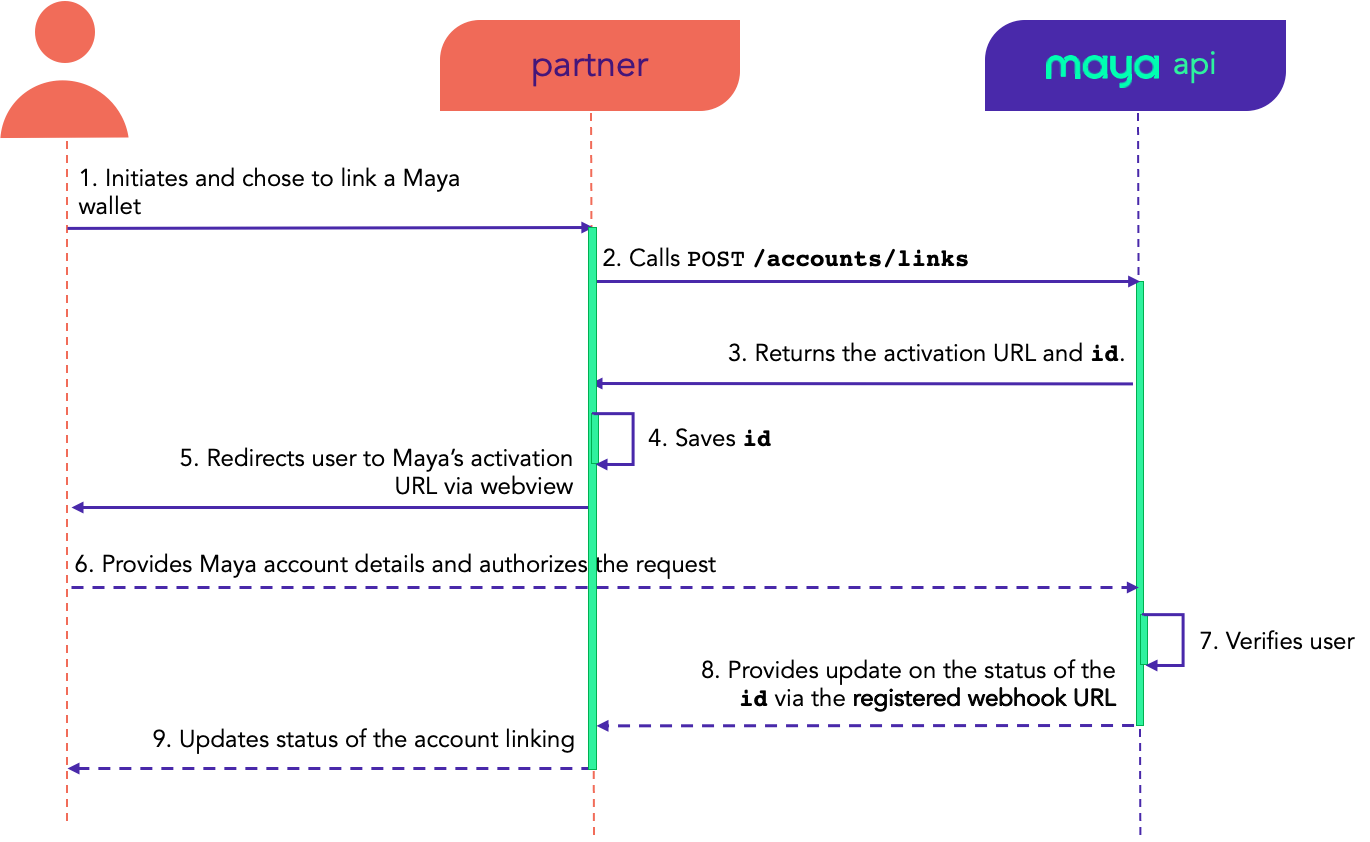
API Specifications
Request Body
See sample request of POST /accounts/links
.
Successful Response Body
See sample 🟢 200 response body of POST /accounts/links
.
Error Response Body
See sample 🔴 400 response body of POST /accounts/links
.
3 Create webhooks for real-time Maya Account Link status
Manage the linking status update by implementing webhooks.
Keep in mind
Maya’s Webhook will trigger a maximum of 4 times.
- Immediately after the status event is triggered.
5 minsafter the previous webhook call failed15 minsafter the previous webhook call failed45 minsafter the previous webhook call failed
Step 1: Identify the events you want to monitor and the event payloads to parse
| Webhook | Description |
|---|---|
LINK_CANCELLED | When authorization of account linking has been cancelled deliberately by the account holder. |
LINK_FAILED | When the attempt to authorize the account linking has failed due to varying reasons. |
LINK_ACTIVATED | When account linking succeeds. |
LINK_DEACTIVATED | When the Account Link ID has been deleted by the merchant. |
Implementing webhook for
LINK_DEACTIVATEDis optional. Utilize this webhook when needed.
Step 2: Create a webhook endpoint as an HTTP endpoint (URL)
This endpoint is expected to receive a POST request with JSON payload from Maya for a given account link event. The endpoint is expected to return a 2xx response status codes.
Sample code:
const express = require('express');
const app = express();

app.post('/webhook', async (req, res) => {
  // TODO: You will have to implement the logic of this method.
  processMayaWebhookNotificationData(req.body);

  res.send({
    success: true
  })
});

app.listen(8080, () => console.log('Listening on port ${8080}!'));Keep in mind
A webhook should be SSL-secured (https) and publicly available.
It is also recommended to use port 443 for your SSL configuration. Your application may experience network issues when integrating with Maya using non-standard ports.
Step 3: Test that your webhook endpoint is working properly.
You can execute your webhook endpoint via a simple curl command or through an API client application like Postman.
Sample Webhook Endpoint Test via curl
$ curl -s -D - -o /dev/null -X POST -H "Content-Type: application/json" \
-d '{
  "result": "SUCCESS",
  "data": {
    "id": "fa4da2ff-dcda-4367-a97d-0c9445147b73",
    "type": "maya",
    "state": "LINK_ACTIVATED",
    "requestReferenceNumber": "Mer-Account-Link-01",
    "createdAt": "2023-02-06T16:11:12.007Z",
    "updatedAt": "2023-02-06T16:20:12.007Z",
    "userCustomizations": {
      "skipResultPage": true
    },
    "redirectUrls": {
      "success": "https://http.cat/200?id=Mer-Account-Link-01&result=success",
      "failure": "https://http.cat/200?id=Mer-Account-Link-01&result=failure",
      "cancel": "https://http.cat/200?id=Mer-Account-Link-01&result=cancel"
    },
    "accountInfo": {
      "last4": "1234"
    }
  }
}' \
https://83ef-130-105-160-253.ngrok.io/webhook
When the output of the curl command shows a 200 response code that means your webhook is reachable and will return a status 200 OK.
HTTP/2 200
content-type: application/json; charset=utf-8
date: Mon, 14 Feb 2022 01:08:14 GMT
ngrok-agent-ips: 130.105.160.253
content-length: 18
Step 4: Send your Webhook URLs to Maya
The feature is in active development. Send your deployed Webhook URLs that will be subscribed to LINK_ACTIVATED, LINK_FAILED, LINK_CANCELLED, LINK_DEACTIVATED to your Maya representative and Maya team will manually register it for you.
Webhook Payload Samples
LINK_ACTIVATED
See the
dataobject of the sample response 🟢 200 - Activated Maya Account Link response of GET /accounts/links/{id}.
LINK_CANCELLED
See the
dataobject of the sample response 🟢 200 - Cancelled Maya Account Link response of GET /accounts/links/{id}.
LINK_FAILED
See the
dataobject of the sample response 🟢 200 - Failed Maya Account Link response of GET /accounts/links/{id}.
LINK_DEACTIVATED
Implementing webhook for
LINK_DEACTIVATEDis optional. Utilize this webhook when needed.
See the
dataobject of the sample response 🟢 200 - Deactivated Maya Account Link response of GET /accounts/links/{id}.
OPT Retrieve Account Link Info
Use the link ID (id) and call the GET /accounts/links/{id} endpoint to get the account link details such as link status.
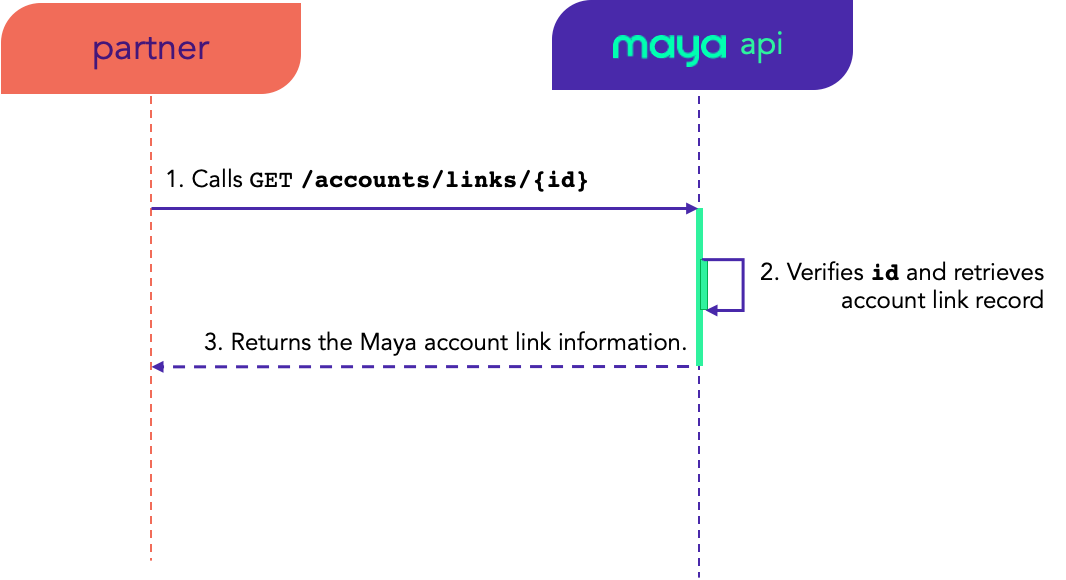
API Specifications
Request Parameter
See sample request of GET /accounts/links/{id}
.
Successful Response Body
See sample 🟢 200 response body of GET /accounts/links/{id}
.
Error Response Body
See sample 🔴 400 response body of GET /accounts/links/{id}
.
OPT Delete Account Link
Use the link ID (id) and call the DELETE /accounts/links/{id} endpoint to unlink or delete the account link.
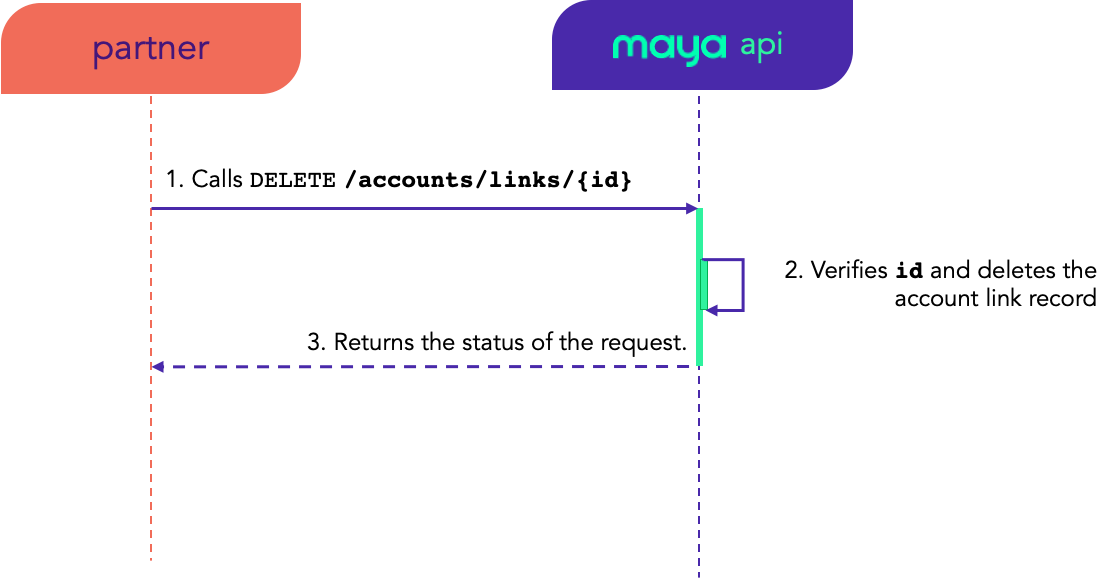
API Specifications
Request Parameter
See sample request of DELETE /accounts/links/{id}
.
Successful Response Body
See sample 🟢 200 response body of DELETE /accounts/links/{id}
.
Error Response Body
See sample 🔴 400 response body of DELETE /accounts/links/{id}
.
Maya Account Linking Errors and Handling
Acquire a better understanding of Maya Account Linking errors and their resolution methods to ensure appropriate management of errors.
Maya Account Linking adopts a RESTful architecture and relies on HTTP response and error codes to notify clients about the outcome of their requests, whether successful or not.
Error Codes
Error responses are returned in JSON format:
{
    "result": "FAIL",
    "error": {
        "code": "ACL001",
        "message": "Missing/invalid parameters.",
        "parameters": [
            {
                "description": "redirectUrls is required",
                "field": "redirectUrls"
            }
        ]
    }
}
The following are the error codes and messages related to account linking operations.
| Error ( code) | HTTP Status | Description ( message) | What to do? |
|---|---|---|---|
AL001 | 400 | Missing/invalid parameters | Will be encountered when any of the required request payload properties are missing and/or are not abiding with the specifications. It is recommended to validate your request and make sure you provide the complete payload properties with valid values. |
AL002 | 400 | Failure to create an account link ID | This is a systematic error in creating a database record of the account link. Kindly retry creating an account link.
|
AL003 | 400 | Authorization cannot be completed | Authorization cannot be completed. You can retry creating a new account link.
|
AL004 | 400 | Authorization cannot be completed | User's authentication has expired. Handle this by asking the user to retry the attempt or let your system retry creating and activating an account link.
|
AL005 | 400 | Account link cancellation or deactivation cannot be done at the moment. | This is a generic message when the operation to cancel or deactivate an account link cannot be done at the moment. You can retry cancellation or deactivation.
|
AL006 | 400 | Account link information cannot be retrieved at the moment. | A generic message when the operation to retrieve an account link cannot be done at the moment. You can retry retrieval.
|
AL007 | 400 | Account link not found. | The provided account link ID is does not exist in the merchant’s record. Make sure you have supplied a correct link ID under your merchant and retry again.
|
AL008 | 400 | Deactivation is not allowed on a failed account link. | The provided account link ID is in To check the status of your link ID, call the Retrieve Account Link endpoint. |
AL999 | 400 | Generic system error. | A catch-all error code for any other error not specified, would suggest to retry the operation.
|
New error codes may be added. The value of
messagemay be updated but the context of the error code should not lose its meaning.
Timeouts
If the timeout is reached upon calling the Maya Account Linking endpoints, an HTTP 504 Gateway Timeout error will be encountered. Please refer to the timeout settings for each endpoint below, as well as the recommended actions to take.
| API Endpoint | Timeout | What to do? |
|---|---|---|
| Create Account Link | 30seconds | It is recommended for your application to retry creating a new account link. If the timeout issue continues even after several retries, report the issue to the Relationship Manager or submit a ticket through the Maya Developer Hub Service Desk
|
| Get Account Link | 30seconds | It is recommended for your application to retry retrieval of account link. If the timeout issue continues even after several retries, report the issue to the Relationship Manager or submit a ticket through the Maya Developer Hub Service Desk |
| Delete Account Link | 30seconds | It is recommended for your application to retry deletion of account link. If the timeout issue continues even after several retries, report the issue to the Relationship Manager or submit a ticket through the Maya Developer Hub Service Desk |
If a timeout occurs during activation link processing, Maya will display an error message to the user, stating ‘That didn’t load right’:
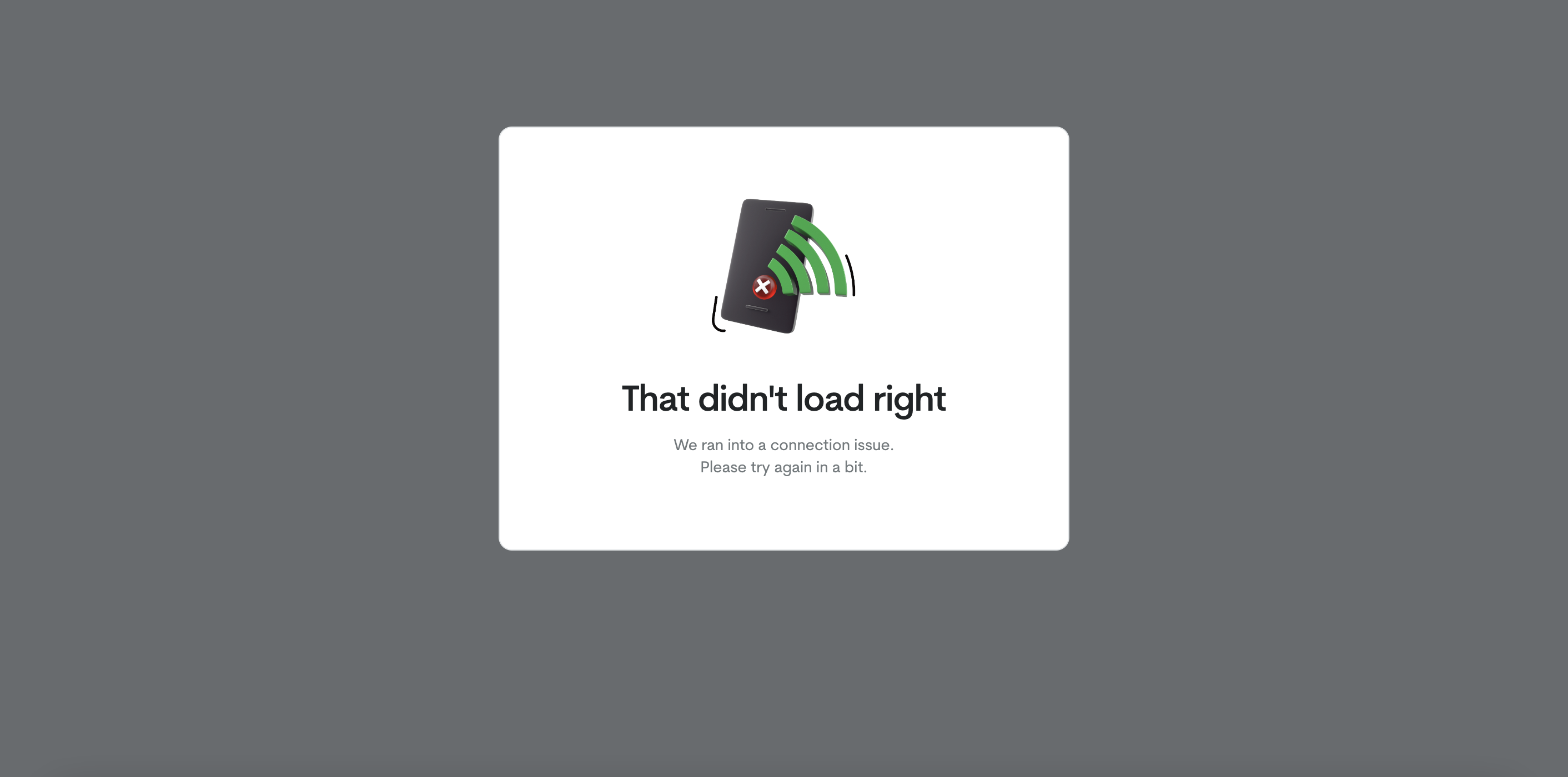
| Event/Process | Timeout | What to do? |
|---|---|---|
Activate Account Link (via activationUrl) | 30seconds | It is recommended for your application to try refreshing/reloading the activation URL. If the timeout issue continues even after multiple refresh attempts, please notify your Relationship Manager or submit a ticket via the Maya Developer Hub Service Desk
|
Accept payments with a linked Maya wallet
Your application should have successfully linked a Maya wallet. For more information, go back to Linking a Maya Account
.
When you’re ready, go to Accept Payments with a Linked Maya Walletto learn more.
Updated 1 day ago