
Overview
This guide explains how to accept Google Pay with Maya. Google Pay enables customers to pay quickly and securely using their Google Wallet or Google Account on supported devices. For merchants and developers, it provides a streamlined checkout experience and simple integration options to accept card payments across supported channels.
Use this page if you want to offer Google Pay as a payment option. How you integrate depends on your checkout setup:
- Use Maya Checkout if you already redirect customers to Maya’s hosted checkout page. Maya activates Google Pay for you — little or no extra work.
- Use your own checkout page (with Maya Vault) if you render the Google Pay button yourself and call Maya’s payment APIs.
Google Pay is a payment option, not a standalone Maya product. Authentication, API keys, webhooks, voids/refunds, and general transaction monitoring follow your parent integration:
After this guide, you should be able to: choose the correct path, complete the steps for that path, and (for own checkout) configure the Google Pay button and call the Maya Vault APIs.
Prerequisites
Before you start:
- Complete onboarding for Maya Checkout and/or Maya Vault with card acceptance, as applicable.
- Review API authentication for the product you use (public/secret keys from Maya Manager).
- Accept Google’s merchant terms (see Requirements).
Choose Your Integration Path
| Your setup | Integration level | What to do |
|---|---|---|
| You use Maya Checkout (Maya’s hosted checkout page) | Low-code / hosted | Go to Accept Google Pay with Maya Checkout. If you are already on Maya Checkout, no action is needed — Maya will activate Google Pay for you. |
| You build your own checkout page or app | Custom | Go to Accept Google Pay on your own checkout page and integrate with the Maya Vault API using the One-Time Card Payment flow. |
Requirements
Shared Requirements
- Merchants must adhere to Google Pay and Wallet API’s Acceptable Use Policy and accept the terms defined in the Google Pay API Terms of Service.
Requirements for Maya Checkout
- If you host Maya Checkout inside an Android WebView, review Google’s Android WebView requirements.
Requirements for Your Own Checkout
- Follow Google’s setup guide for Web or Android, depending on your integration channel.
- Create your profile in the Google Pay Business Console.
- Some merchant category codes (MCCs) can only use
PAN_ONLYauthentication. See Supported authentication methods. gatewaymust bemayaph.gatewayMerchantIdmust match your Maya card MID.allowedCardNetworksmust match schemes enabled for your account.- Do not retry the same Google Pay token after a failed token exchange. Ask the customer to tap Google Pay again.
Accept Google Pay with Maya Checkout
Accept Google Pay by redirecting customers to Maya’s hosted checkout page. No action is needed for merchants who are already integrated with Maya Checkout — Maya will activate Google Pay for you.
Integration Steps
- Follow the Maya Checkout integration guide to redirect to Maya’s hosted checkout page.
- The Google Pay button will be available on the checkout page, if applicable.
- Maya Checkout handles 3DS authentication (step-up) and redirects the customer to the issuing bank when required. No additional work is needed on your side for the 3DS flow.
Hosting Maya’s Checkout page in Android Webview?
For integrations in Android, review Google’s minimum requirements in the Google Developer Portal.
Transaction Monitoring
Use the same monitoring approach as your Maya Checkout integration (redirects, webhooks, and status handling described in the Checkout docs). Google Pay does not add a separate monitoring API.
Accept Google Pay on Your Own Checkout Page
Accept Google Pay in your own website or app and integrate with the Maya Vault API using the One-Time Card Payment flow.
Integration Steps
- Follow the Maya Vault integration guide.
- Create your profile in the Google Pay console
- Add the Google Pay button in your checkout page.
- Implement the payment flow: your checkout page tokenizes via Create Payment Token, then your server creates the payment via Create Payment.
Google Pay Button Settings
See Google’s guides for adding the button on Web or Android, or use a library such as @google-pay/button-react.
Sample paymentDataRequest:
{
  apiVersion: 2,
  apiVersionMinor: 0,
  allowedPaymentMethods: [{
    type: 'CARD',
    parameters: {
      allowedAuthMethods: ['PAN_ONLY', 'CRYPTOGRAM_3DS'],
      allowedCardNetworks: ['VISA', 'MASTERCARD', 'JCB', 'AMEX'],
      billingAddressRequired: true,
      billingAddressParameters: {
        format: 'FULL',
        phoneNumberRequired: true
      }
    },
    tokenizationSpecification: {
      type: 'PAYMENT_GATEWAY',
      parameters: {
        gateway: 'mayaph',
        gatewayMerchantId: '<your-maya-card-product-mid>'
      }
    }
  }],
  merchantInfo: {
    merchantId: '<your-google-pay-merchant-id>',
    merchantName: '<your-store-name>'
  },
  transactionInfo: {
    totalPriceStatus: 'FINAL',
    totalPrice: '100.00',
    currencyCode: 'PHP'
  },
  emailRequired: true // required if Kount is enabled
};
Guidelines:
gateway— usemayaphgatewayMerchantId— use your Maya card product MIDallowedAuthMethods— see Supported authentication methodsallowedCardNetworks— your enabled schemes, e.g.["VISA", "MASTERCARD", "JCB", "AMEX"]
Supported Authentication Methods
The Google Pay API returns cards as PAN_ONLY and/or CRYPTOGRAM_3DS depending on the device and Google Account, and on the allowedAuthMethods you configure. For PAN_ONLY, a payment card stored on file with the user's Google Account is returned. For CRYPTOGRAM_3DS, a device token on an Android-powered device authenticated with a 3-D Secure cryptogram is returned. You can control whether both methods or just one of them can be returned.
If your MCC is listed below, you can only use PAN_ONLY.
| MCC | Business type |
|---|---|
4829 | Money transfer |
5967 | Direct marketing — inbound teleservices |
6051 | Non-financial institutions — foreign currency, cryptocurrency, money orders, account funding, travelers cheques, debt repayment |
6540 | Non-financial institutions — stored value card purchase or load |
7801 | Government-licensed online casinos (US only) |
7802 | Government-licensed horse or dog racing (US only) |
7995 | Betting — lottery, casino chips, off-track betting, wagers, games of chance |
Create a Payment Token
After Google Pay returns the encrypted payment data, your checkout page calls Maya Vault via Create Payment Token to exchange it for a paymentTokenId, then passes the paymentTokenId to your server.
Request body:
{
  source: "googlepay",
  paymentMethod: {
    token: paymentData.paymentMethodData.tokenizationData.token
  }
}
Save the paymentTokenId and the mapped buyer data for the next step.
Create the Payment
Your server calls Maya Vault via Create Payment to create the payment using the paymentTokenId and buyer data from your checkout page.
Request body:
{
  paymentTokenId: paymentTokenId,
  buyer: {
    firstName: splitName(paymentData.paymentMethodData.info.billingAddress.name).firstName,
    middleName: splitName(paymentData.paymentMethodData.info.billingAddress.name).middleName,
    lastName: splitName(paymentData.paymentMethodData.info.billingAddress.name).lastName,
    contact: {
      email: paymentData.email,
      phone: paymentData.paymentMethodData.info.billingAddress.phoneNumber
    },
    billingAddress: {
      line1: paymentData.paymentMethodData.info.billingAddress.address1,
      line2: paymentData.paymentMethodData.info.billingAddress.address2,
      city: paymentData.paymentMethodData.info.billingAddress.locality,
      state: paymentData.paymentMethodData.info.billingAddress.administrativeArea,
      zipCode: paymentData.paymentMethodData.info.billingAddress.postalCode,
      countryCode: paymentData.paymentMethodData.info.billingAddress.countryCode
    },
    shippingAddress: {
      line1: paymentData.paymentMethodData.info.shippingAddress.address1,
      line2: paymentData.paymentMethodData.info.shippingAddress.address2,
      city: paymentData.paymentMethodData.info.shippingAddress.locality,
      state: paymentData.paymentMethodData.info.shippingAddress.administrativeArea,
      zipCode: paymentData.paymentMethodData.info.shippingAddress.postalCode,
      countryCode: paymentData.paymentMethodData.info.shippingAddress.countryCode
    }
  }
}
Handle the Payment Response
Match your handling to the two paths in the API sequence diagram.
| Payment Response | What to do |
|---|---|
Payment state is FOR_AUTHENTICATION and response contains verificationUrl | Redirect the customer to verificationUrl. After the customer completes verification, Maya Vault redirects the customer back to your checkout page on your redirectUrl.success or redirectUrl.failure. |
| Other payment states | Redirect the customer back to your checkout page on your redirectUrl.success or redirectUrl.failure depending on the payment status in the response. |
For the full list of payment states, see Payment Statuses.
Transaction Monitoring
Google Pay payments use the same Maya Vault monitoring patterns as other one-time card payments (redirects, webhooks, and payment status). See the Maya Vault one-time card payment guide for how to track and verify payment status.
API Sequence
The diagram below applies to your own checkout page. It shows how the customer, your checkout page, Google Pay, your server, and Maya Vault work together.
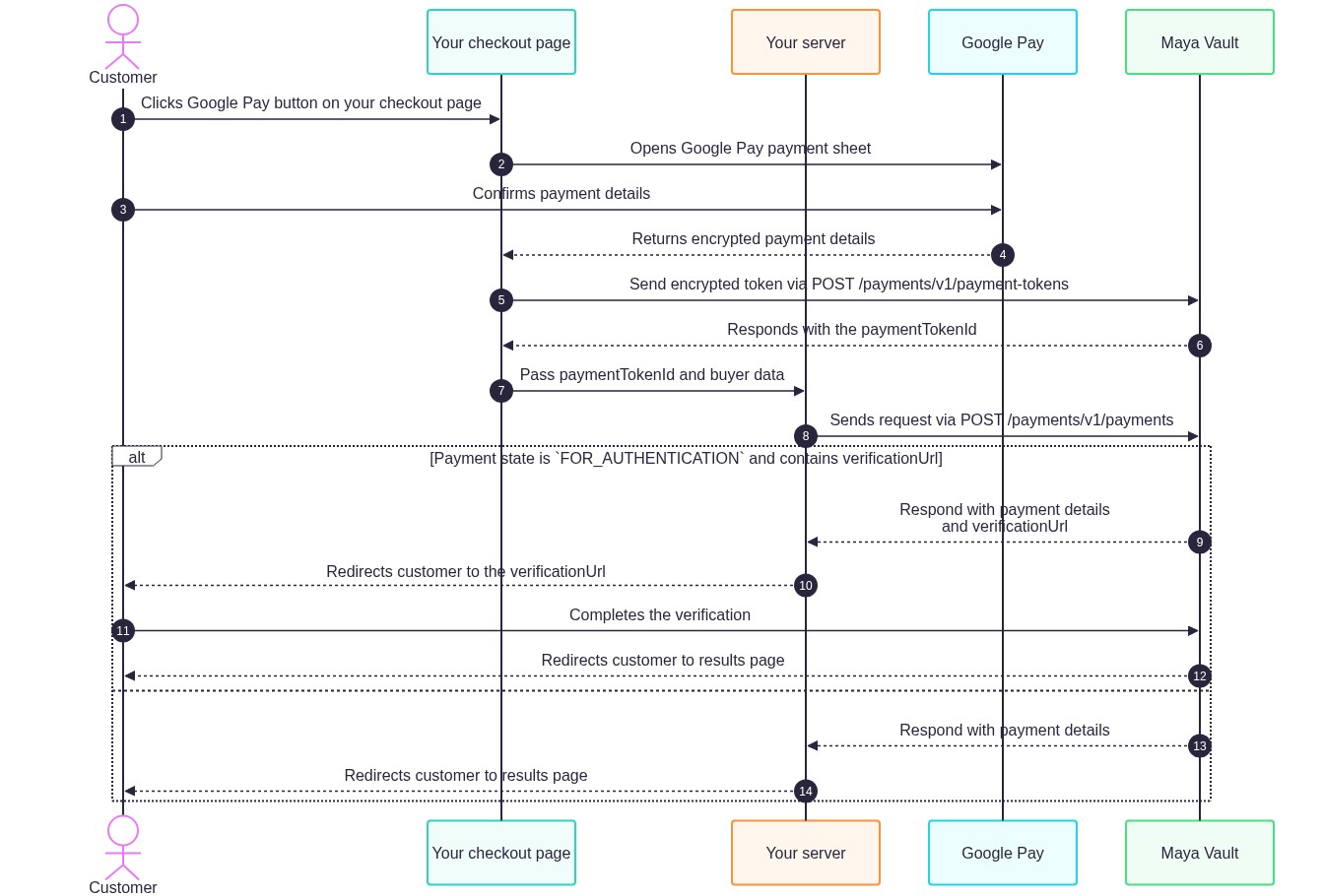
For Maya Checkout, the customer is redirected to Maya’s hosted page; Maya presents Google Pay and handles 3DS when required. See Accept Google Pay with Maya Checkout.
Endpoints
These Maya-hosted endpoints are used for your own checkout Google Pay flow. Full request/response schemas are in the API reference.
| Method | Endpoint | Description |
|---|---|---|
POST | /payments/v1/payment-tokens | Exchange the encrypted Google Pay token for a paymentTokenId (source: "googlepay"). |
POST | /payments/v1/payments | Create the payment using paymentTokenId and buyer data. |
For Maya Checkout, use the Checkout integration endpoints and redirect flow described in the Maya Checkout integration guide.
Error Handling
Errors can occur during payment token creation (Create Payment Token), or during payment (Create Payment).
The table below lists Google Pay–specific and related errors for the own-checkout path. For broader Vault or Checkout error catalogs, use your parent product’s troubleshooting docs.
| Error Code and Message | HTTP Status Code | Problem | What you should do |
|---|---|---|---|
2553 - Missing/invalid parameters | 400 | Token is empty, null, or missing | Validate token on your server. Ask customer to tap Google Pay again. Do not retry the same token. |
PY0201 - Google Pay error | 400 | Token is invalid, expired, or cannot be decrypted | Retry Google Pay transaction. Ensure encrypted payment data is not modified or tampered with. |
PY0200 - Google Pay unreachable / timed out | 500 | Temporary Google Pay service issue | Retry Google Pay transaction. Contact [email protected] if persistent. |
PY0071 - Payment mismatch with Merchant | 400 | gatewayMerchantId does not match your actual MID | Fix gatewayMerchantId to match your Maya card MID. |
PY0019 - Forbidden | 400 | Merchant card MID is missing or not configured | Contact Maya support to configure your card MID. |
PY0128 - Payment is ineligible for the option/s provided | 400 | Ineligible merchant used CRYPTOGRAM_3DS | Set allowedAuthMethods to ["PAN_ONLY"] only. See supported authentication methods |
PY0036 - Card is not supported | 400 | Card network is not supported. | Set allowedCardNetworks to supported card networks. |
PY0070 - Scheme is unsupported by merchant | 400 | Card network is not enabled for your account | Set allowedCardNetworks to supported card networks enabled for your account. |
PY0204 - Payment token data is invalid | - | Invalid authentication data in token | Do not retry the same token. Ask the customer to start a new Google Pay selection, then retry only with that fresh token. Contact [email protected] if the error persists after a new attempt. |
Testing
Use this section after you have implemented the path that applies to you.
Sandbox and Demo
- You can use Google Pay test environment with our Sandbox environment or see it in action in our Demo website.
What to Validate
| Check | Expected result |
|---|---|
| Maya Checkout path | Google Pay appears on the hosted checkout page (when enabled for your account), and a successful payment completes without custom Google Pay button code. |
| Own checkout — button config | gateway is mayaph and gatewayMerchantId matches your Maya card MID. |
| Own checkout — token | POST /payments/v1/payment-tokens with source: "googlepay" returns a paymentTokenId. |
| Own checkout — payment | POST /payments/v1/payments succeeds, or returns verificationUrl when step-up is required. |
| Restricted MCC | If your MCC is restricted, using only PAN_ONLY avoids PY0128. |
Production
Before going live with your own checkout:
Make sure your integration has been submitted to Google and meets their guidelines for Web or Android.
For Maya Checkout, confirm with Maya that Google Pay is activated for your merchant account, then retest in production using your normal Checkout go-live checklist.
FAQs
Q: I already use Maya Checkout. Do I need to build a Google Pay button?
No. Maya activates Google Pay on the hosted checkout page. Follow the Maya Checkout path; no custom Google Pay button is required on your site.
Q: Which path should I choose — Maya Checkout or my own checkout?
Choose Maya Checkout if you redirect to Maya’s hosted page. Choose your own checkout if you want the Google Pay button on your website or app and you integrate with Maya Vault.
Q: What value should I use for gateway/gatewayMerchantId?
gateway/gatewayMerchantId?Use mayaph for gateway. Use your Maya card MID for gatewayMerchantId.
Q: My business MCC is in the restricted list. What should I do?
Set allowedAuthMethods to ["PAN_ONLY"] only. Using CRYPTOGRAM_3DS can return PY0128.
Q: Can I reuse a Google Pay token after an error?
No. If token creation fails (for example 2553 or PY0201), ask the customer to tap Google Pay again. Do not retry the same token.
Q: Where do I find general Maya Vault or Checkout errors?
This page lists Google Pay–related errors for own checkout. For the full product error catalogs and troubleshooting, use your Maya Vault or Maya Checkout documentation.
Next Steps
This page explained how to accept Google Pay through Maya Checkout or through your own checkout with Maya Vault. You should now know which path fits your setup, what to configure, which APIs to call for own checkout, and how to handle common Google Pay errors.
Recommended next reading:
- Accept one-time payment using Maya Checkout — if you use the hosted path
- One-time card payment using Maya Vault — if you use your own checkout
- Create Payment Token and Create Payment — API reference for own checkout
- Google’s publish guides for Web or Android — before production for own checkout