
Tap to Phone: How to Accept Contactless Payments Using Your Android Phone
Created by: Genson Cerezo 3min read
November 12, 2026
For sellers and entrepreneurs, how you accept payments can depend on where and how you do business. If you accept contactless payments, Tap to Phone lets you use a compatible NFC-enabled Android device with the Maya Business App instead of a separate payment terminal.
This article explains what Tap to Phone is, what you need to use it, and how to activate the feature, accept payments, and send digital receipts.
What Is Tap to Phone?
Tap to Phone allows eligible Maya Business merchants to accept contactless payments using an NFC-enabled Android device.
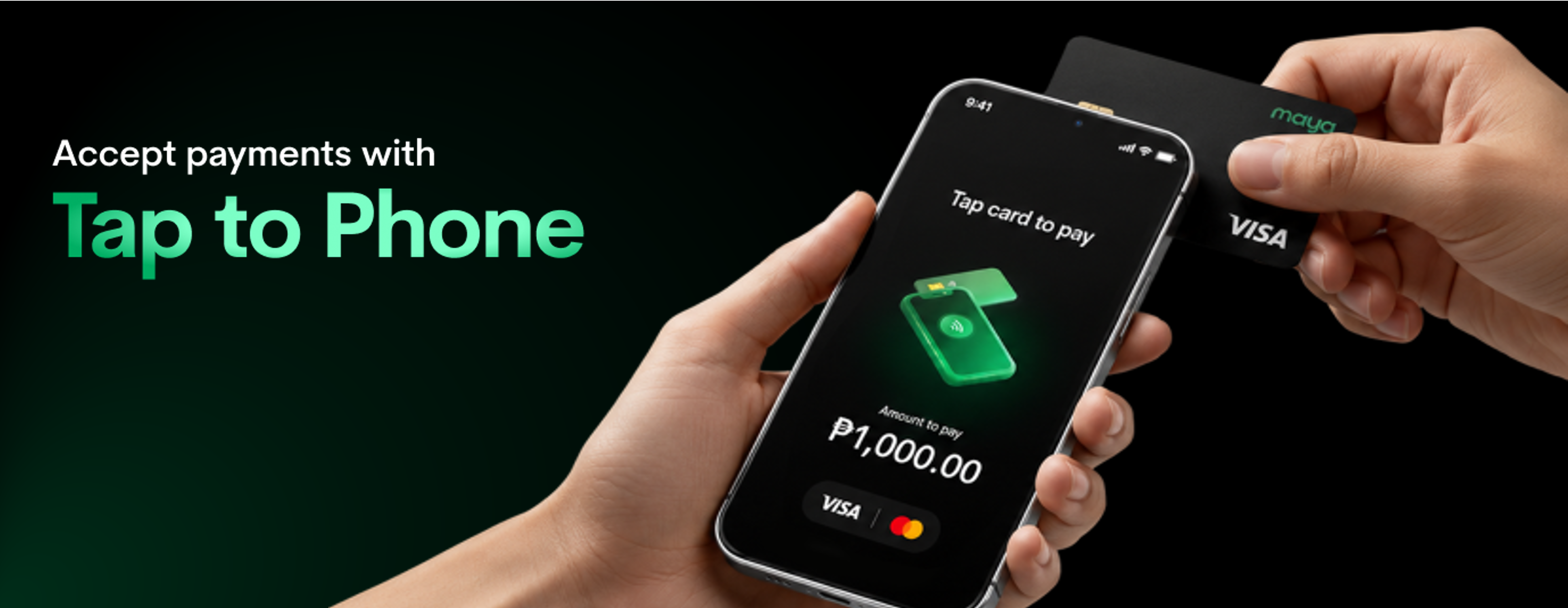
The payment is processed through the Maya Business App. Instead of tapping a card on a separate payment terminal, the customer taps their contactless card or supported digital wallet on the merchant's Android device.
What You'll Need
Before using Tap to Phone, make sure you have:
- An NFC-enabled Android smartphone
- The Maya Business App downloaded and ready
- A Maya Business Pro account
No coding is required to use Tap to Phone.
Supported Payment Methods
Tap to Phone currently accepts contactless Visa and Mastercard cards.
Customers can also use Google Pay or Apple Pay when the digital wallet contains a supported Visa or Mastercard.
How to Activate Tap to Phone
You can activate Tap to Phone through the Maya Business App.
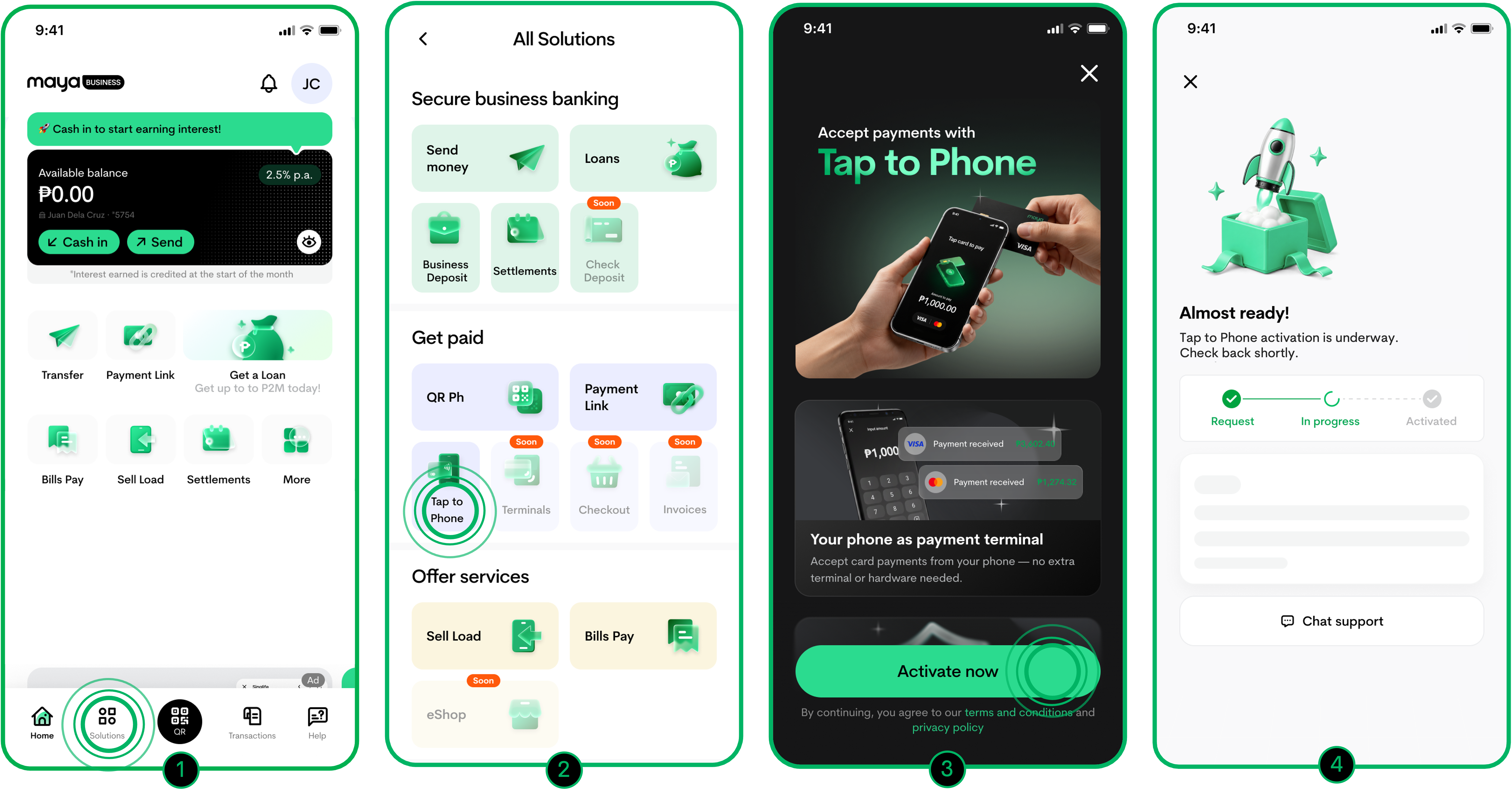
- Open the Maya Business App, then head to Solutions.
- Select Tap to Phone.
- Tap Activate Now.
- The app will run a quick device check and handle the provisioning in the background. Give it a moment to finish setting things up.
Once activation is successful, Tap to Phone is ready to use.
How to Accept a Payment
After activating Tap to Phone, you can use it to accept a contactless payment.
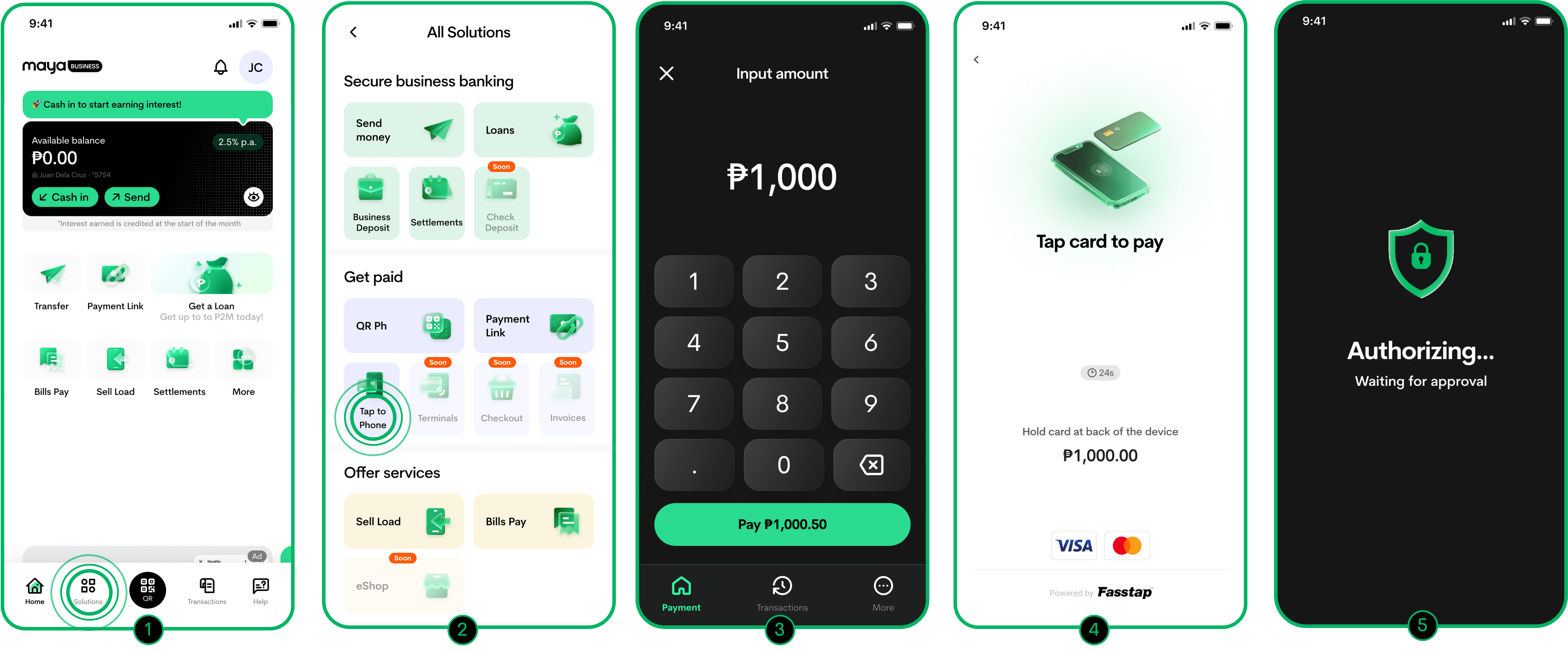
- Open the Maya Business App and go to Solutions.
- Select Tap to Phone.
- Enter the amount, confirm it, and wait for the app to say it's ready.
- Have your customer tap their contactless card on your phone.
- Wait a moment for the payment to be authorized.
Depending on the card and transaction, the customer may be asked to provide a signature or enter their card PIN.
Once the payment is approved, the Maya Business App displays the payment confirmation.
How to Send a Digital Receipt
After a successful payment, you can send a digital receipt to the customer.
Right after a payment:
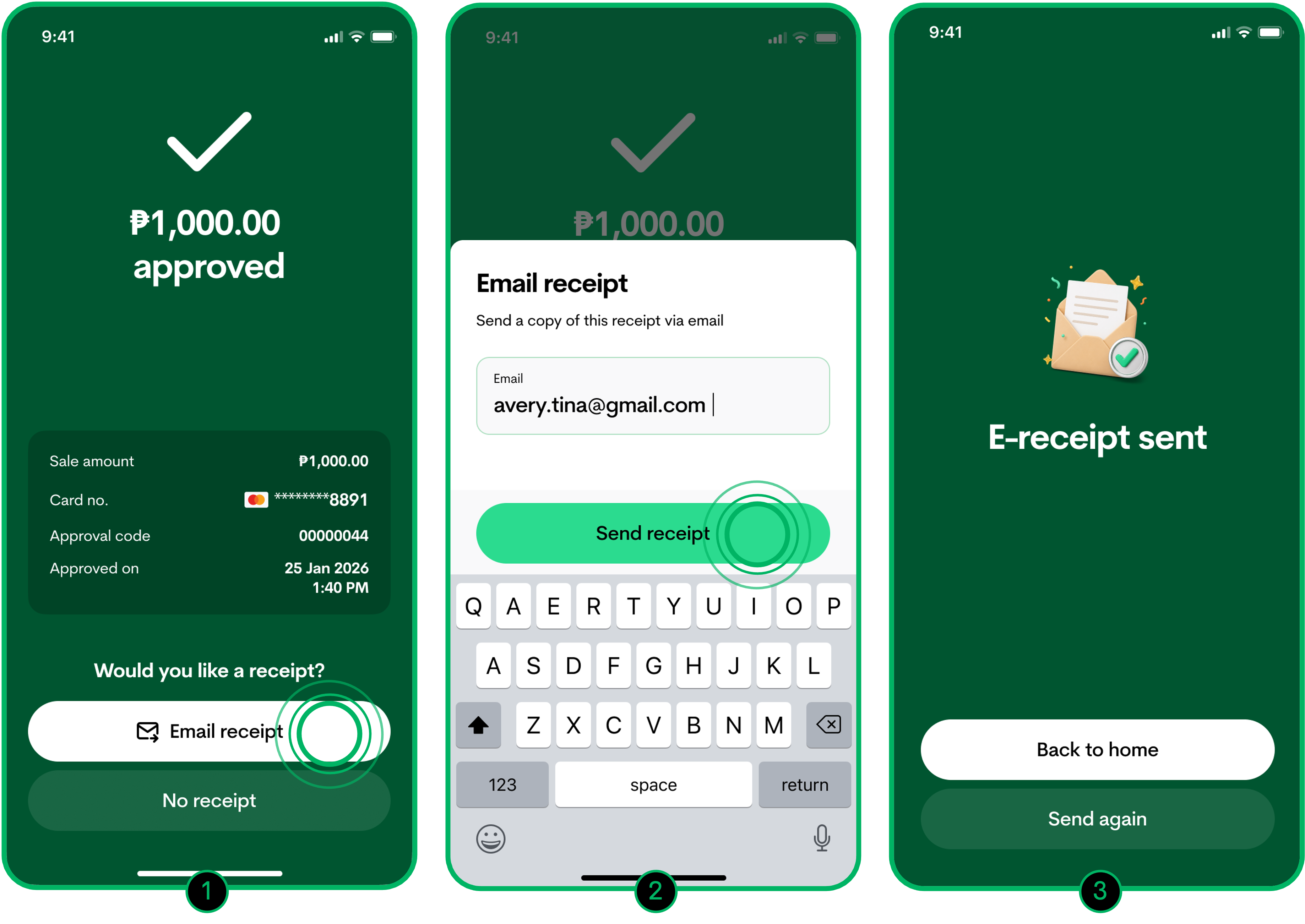
- Tap Email Receipt on the success screen.
- Type in the customer's email and hit Send Receipt.
For a past transaction:
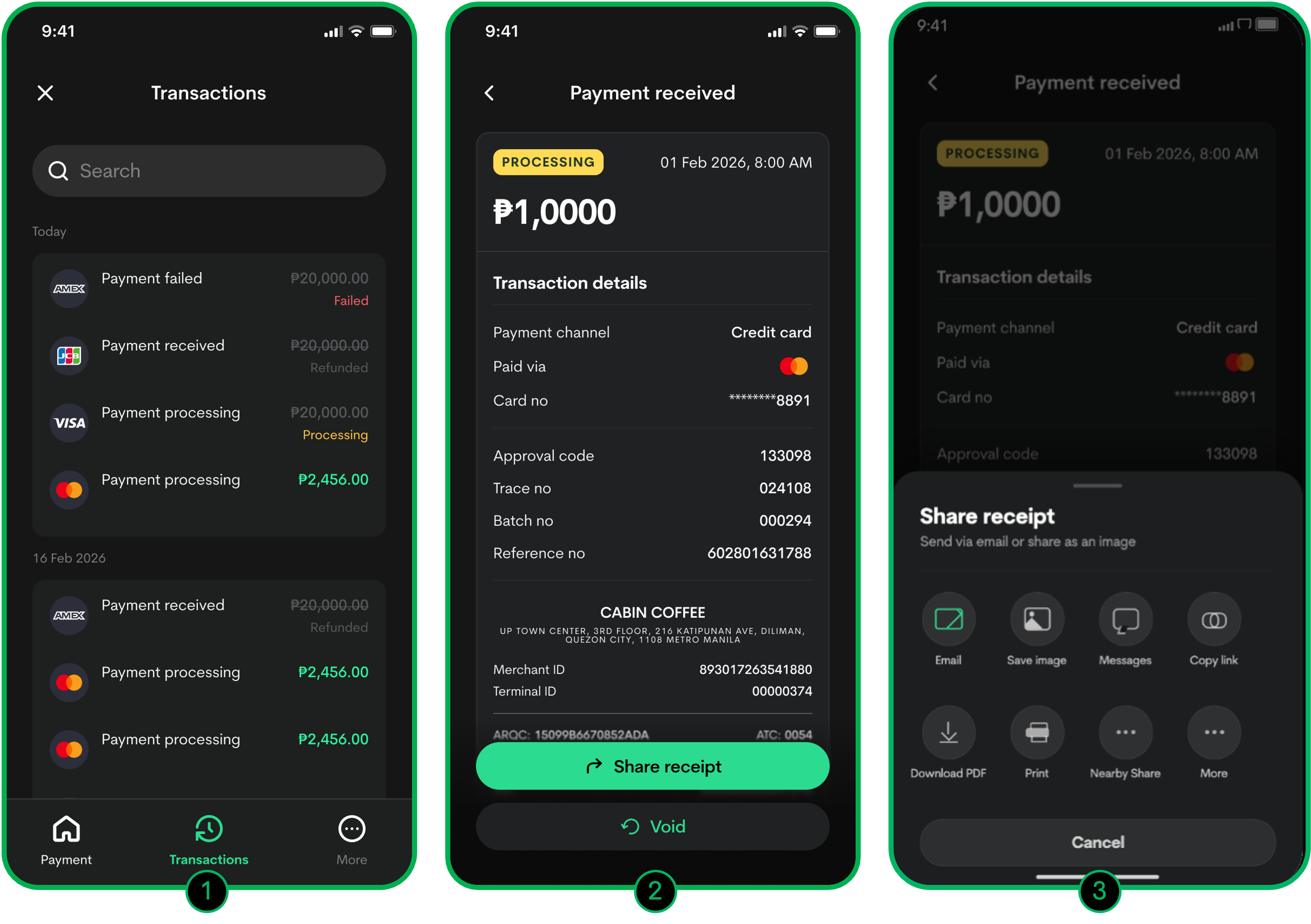
- Go to your Transaction Dashboard.
- Find the transaction you're looking for and tap Share Receipt.
- Choose how you'd like to send it — by email or as an image.
When Might Tap to Phone Be Useful?
It might be worth considering if you:
- Regularly accept contactless card payments
- Don't operate from a fixed checkout counter
- Sell at events, markets, or pop-ups
- Offer services at different locations
- Want the flexibility of taking payments from a mobile device
Of course, whether it's the right fit really comes down to your setup — how you take payments now, whether your phone is compatible, and how your business operates day-to-day.
Learn More
For more details about Tap to Phone, refer to Tap to Phone.
Contributor

Learn more about Maya!
- Head back to our Maya Tech Blog for more interesting articles
- Keep up with the latest stories of innovation from Maya Stories
- or Check us out in LinkedIn.